

Hyperlinks
Hyperlinks
Hyperlinks are essential elements in web design, quietly guiding users through online content and enhancing engagement by connecting them to deeper information. In the guide below, you'll learn how to add hyperlinks to your content in the CMS 5 in various formats and styles, all while adhering to GVSU's Accessibility standards.
- Add any content chunk that allows you to edit text to the page you want to feature a link on.
- Type out the copy (sentence or phrase) that you want to be hyperlinked.
- Using your mouse, highlight the copy you want to be linked.
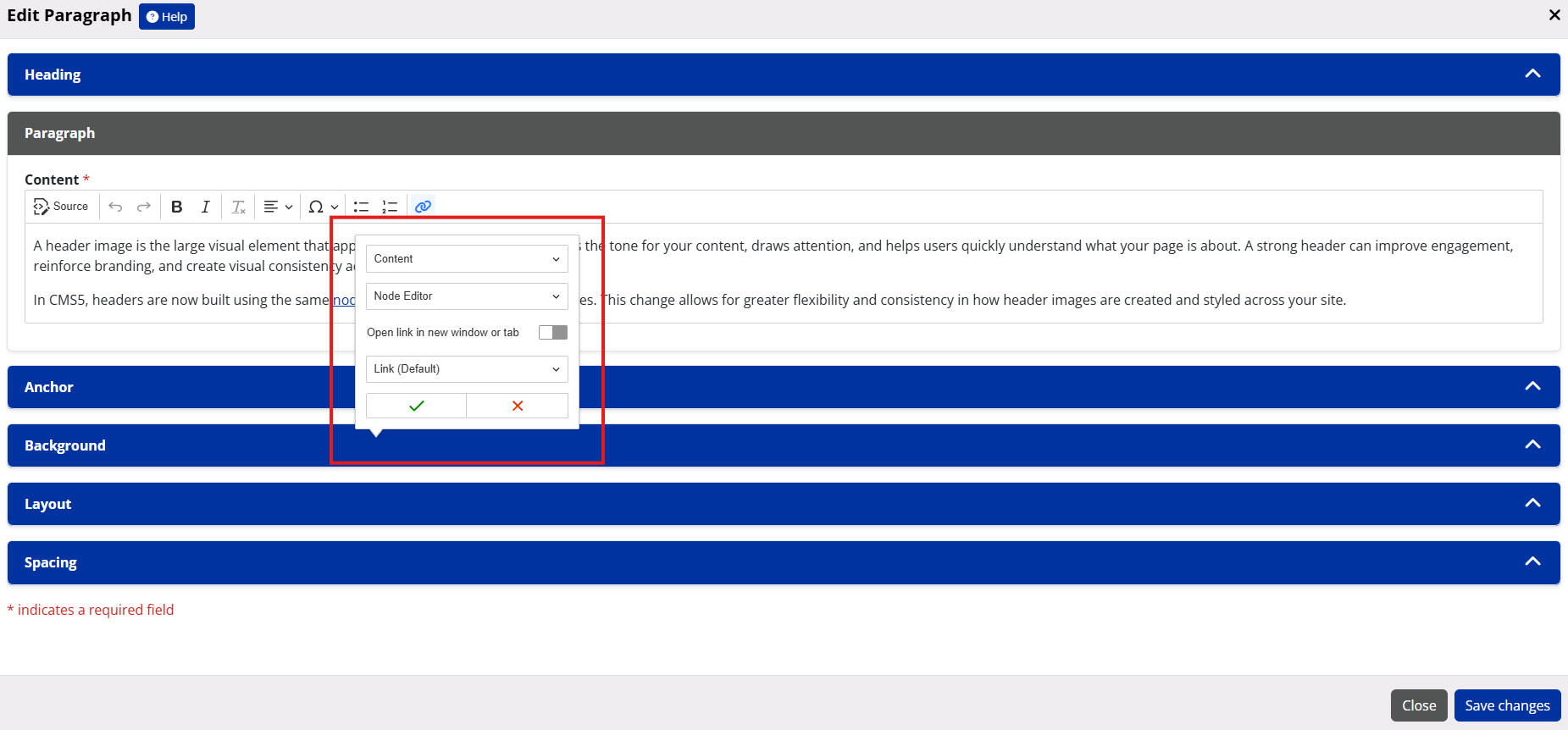
- In the editor tools menu, click on the link button (chain link icon).
- Next choose the link type:
- URL or File: sends a user to a webpage or file from your file manager.
- Email: opens a user's default email program with a new email to the link address.
- Content: use this when linking to other pages on your CMS site.
- Modules: sends users to specific modules on your CMS site.
- Other:
- Site Index: sends users to a list of all pages on your CMS site.
- Protected Files: sends users to sensitive files that need to be behind protected logins.
- Choose the link target
- Either have the link open in the same window or a new tab.
- Chose whether you want the link to remain as a link or become a button from one of the various options.
- Click the green check when finished.
Page last modified June 16, 2026