

File Manager
File Manager
The File Manager in CMS 5 allows you to upload, edit, crop, and organize all the files you use on your site. It’s designed to give you more control and flexibility when managing images and documents.
Accessing the File Manager
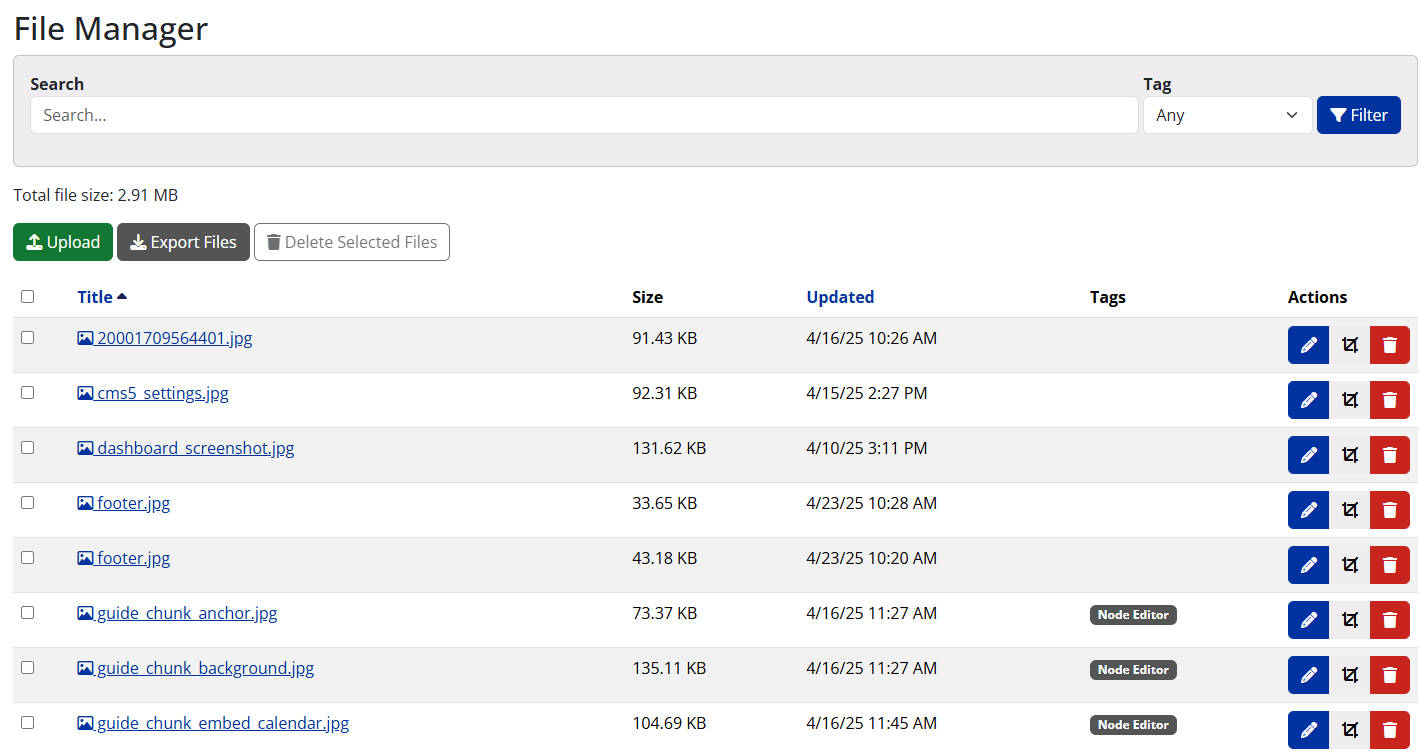
From the CMS 5 dashboard, click File Manager in the left-hand navigation menu. On the overview page, you can:
- Search for existing files
- Upload new files
- Edit, crop, or delete files
- Export your file library
Editing or Deleting Files
- To edit a file, click the blue pencil icon to open the editor page.
- To crop a file, click the gray crop icon next to the edit icon.
- To delete a file, click the red delete icon.
Uploading a New File
- Click the green upload button to start.
- After uploading a file, complete the following steps:
- Crop or Rotate the Image
- CMS5 includes a new cropping tool with preset aspect ratios commonly used on the web.
- Add Alternative Text
- Write a clear, descriptive alternative text (ALT text) that explains the file’s content.
- Refer to GVSU Accessibility Standards for best practices.
- Set Permissions
- Decide if the file should be publicly accessible or restricted to users with "protected access" permissions.
- Add Tags (Optional)
- Apply tags to group similar files together, making it easier to manage your library as it grows.
- Submit Your Changes
- Once everything is complete, click Submit to finalize the upload.
- Crop or Rotate the Image
Best Practices for File Naming
Using clear and consistent file names makes it easier to manage your library, improves accessibility, and strengthens your site's SEO.
When uploading files:
- Be Descriptive: Use meaningful names that describe the file’s content (example: gvsu-recwell-group-fitness.jpg).
- Use Hyphens, Not Spaces: Separate words with hyphens for better readability by both users and search engines (example: campus-event-flyer.pdf).
- Avoid Generic Names: Don't upload files with default names like IMG_1234.jpg or Document1.pdf.
- Keep It Short and Clear: Aim for concise file names that still clearly communicate the content.
Following these practices helps you find and reuse files easily — and improves your site's search performance over time.
Page last modified June 16, 2026