

Activity Tips
|
Suitable Items |
Member (Student Population) |
Leader (Organization Executibe Board) |
Manager (Organization Advisor and President) |
|---|---|---|---|
|
View public content in all organization profiles |
Yes |
Yes |
Yes |
|
View member-only content in assigned organization profiles |
Yes |
Yes |
Yes |
|
Managing content of assigned student organization profile |
No |
Yes |
Yes |
|
Create, edit, and delete Leader roles in assigned organization profiles |
No |
No |
Yes |
|
Create, edit, and delete Member roles in assigned organization profiles |
No |
Yes |
Yes |
|
View student organization membership list in assigned organization profiles |
Yes |
Yes |
Yes |
|
Export and import list of student organization membership in assigned organization profiles |
No |
Yes |
Yes |
Member Roles
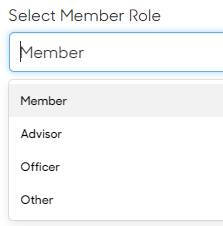
The member role doesn't define a functionality that those associated with the student organization may have, but it acts as a title for the user when data on the student organization is reviewed. There are four types of member roles within a student organization:
- Member: reserved for the general student body.
- Advisor: reserved for faculty, staff, or other professional members at your institution that advise a student organization.
- Officer: a student organization leader.
- Other: if none of the roles above apply, choose Other.
- Note: the member roles do not act as access roles, and as such, they can differ from the role you choose as an access role. For example, an organization president could be given the Manager-level access role with an Officer-level member role. This is up to the student organization administrator's discretion.
Title
Finally, you can choose what title applies to the user associated with the student organization, if applicable. There are seven default titles:
- Member
- President
- Vice President
- Treasurer
- Secretary
- Committee Chair
- Advisor
- Note: If none of these titles fit for the user you are adding, you can also type in a custom title.

Creating Event Activities
Keep in mind...
Use the Event activity type for workshops or events students can obtain credit for by scanning a QR code with the Suitable mobile app.
To Create an Event:
1. First, navigate to the Activities tab on the left-hand side of your pathway, and then select 'Create a new activity'.
2. The first tab you'll be brought to when creating the activity is to choose the type. To create an event-type activity, choose Event.

3. Next will be the Detail tab. Fill in all required information, as well as any additional information you may be aware of.

4. All events automatically will generate QR codes once created. Additionally, under the Validation tab in the activity wizard, you can decide whether you want to require administrator approval for the activity or not. By default, events will not require administrator approval.

5. Next is the Level and Competencies tab. You can associate as many competencies you feel are relevant to your event, but must choose at least one level and one competency.
Note: the number of competencies that you apply to an activity acts as a multiplier for how many points a student may earn, based on the level that is applied. Read more about how this works here!

6. The next tab you will come across is the Option of tab. Use this option if you will be adding this event as an additional option to a pre-existing experience set. If you won't be doing this, skip to the Date tab.

7. In the Date tab, because of the type of activity you are creating, you will need to add a start date and time, as well as an end date and time. You can also enable RSVP, set a capacity limit for RSVP attendance, and add a location in this tab if that is relevant to your event.

8. Finally, you'll arrive to the Preview tab. You can use this tab to ensure all information about your event is correct before publishing it to the Activity Stream by clicking 'Approve preview and post activity' in the top right!
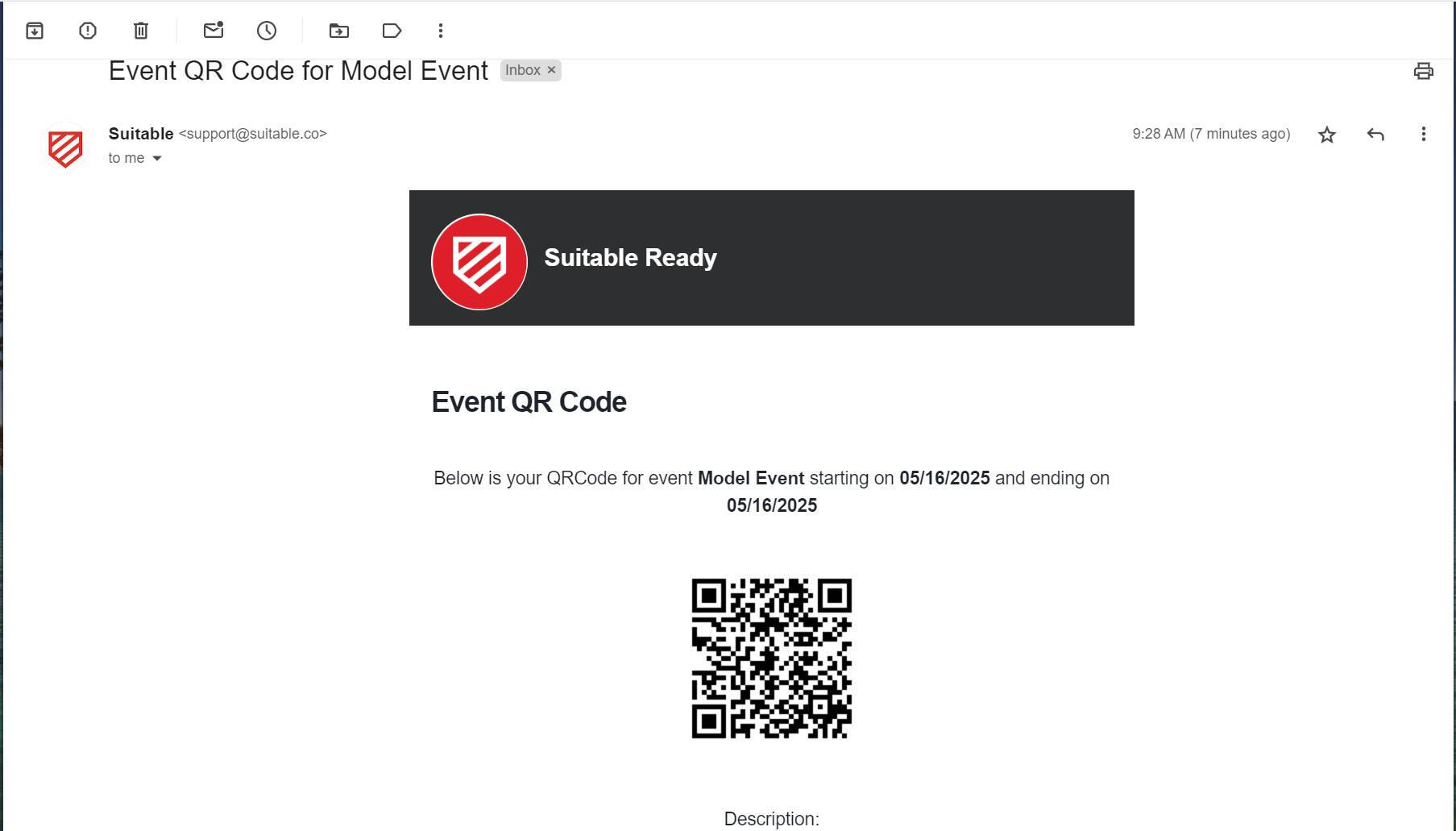
9. After the activity has been posted, you'll receive an email with the QR code to display at your event so that students may earn points.
After the event has ended
- Your activity will automatically move to the Expired tab under the Activities page.
- You will be able to obtain a completion report for the event by following these instructions.
Task Validations
Task Validations
Task validations are used for written assignments or reflections, or even portfolio submissions. They are also utilized when administrator approval is needed before points can be awarded for an activity.
Reflection
When an activity has the Written Reflection validation type, you are asking a student to write a reflection on the activity to earn credit. A text box is provided to the student, which allows the student to write a short reflection on their experience, up to 5,000 characters. For reflections, it's important to remember to add a prompt for the student to respond to.

Submission
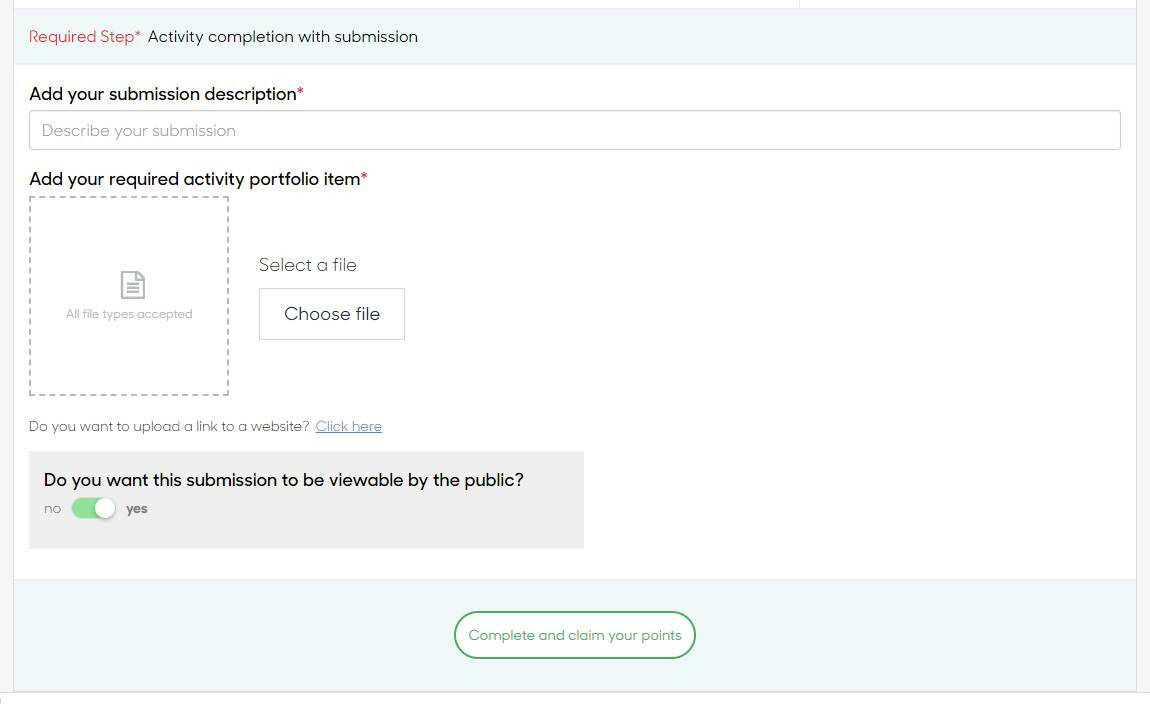
The portfolio submission option will require students to upload a document or file to satisfy the requirements of the task. This submission will also be made available in the student’s scorecard, where it can be shared out to employers or on their LinkedIn page. In the description of the activity, you should put what type of file the student needs to submit in order to complete the task.
Administrator Approval
Many tasks will require administrator approval before points are awarded to a student for completion of an activity. By enabling this validation, you are requiring that the student's submission or reflection be reviewed by an administrator before points are given to the student.

Event Validation
Events are utilized when a program has an activity that they would like for students to receive credit for attending. There are different ways to implement the Event activity option, such as using it for workshops, advising sessions, or in the traditional way, by attending an event. Events have an automatic validation: smart codes, or QR codes. When an event is created, a smart code will be automatically emailed to the administrator who created the event. There are two types of smart codes available in Suitable: branded or unbranded.
Note: if an event is edited after it has been created, the QR code will not change, so a new smart code will not need to be downloaded.
Branded Smart Code
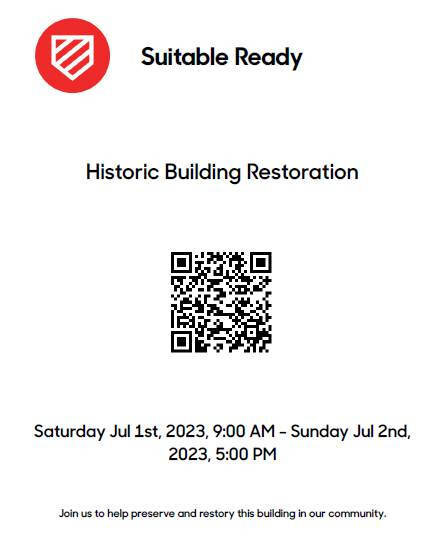
The second type of QR code that is provided is a branded smart code. This will include your program's name, logo, the event name, details, and description. This code is provided to you in a printable PDF format once you choose "Download" and "View," after clicking "Get Smart Code."

Keep in mind…
This feature is particularly useful for recurring events or activities. The only activity types that can be copied are Events, Point Total Activities, and Tasks.
Copying Activities in Your Program
1. Navigate to the Activities tab on the left-side toolbar and find the Activity you would like to make a copy of.
2. Click the three-dot ellipsis on the right of the activity and select Copy Activity.
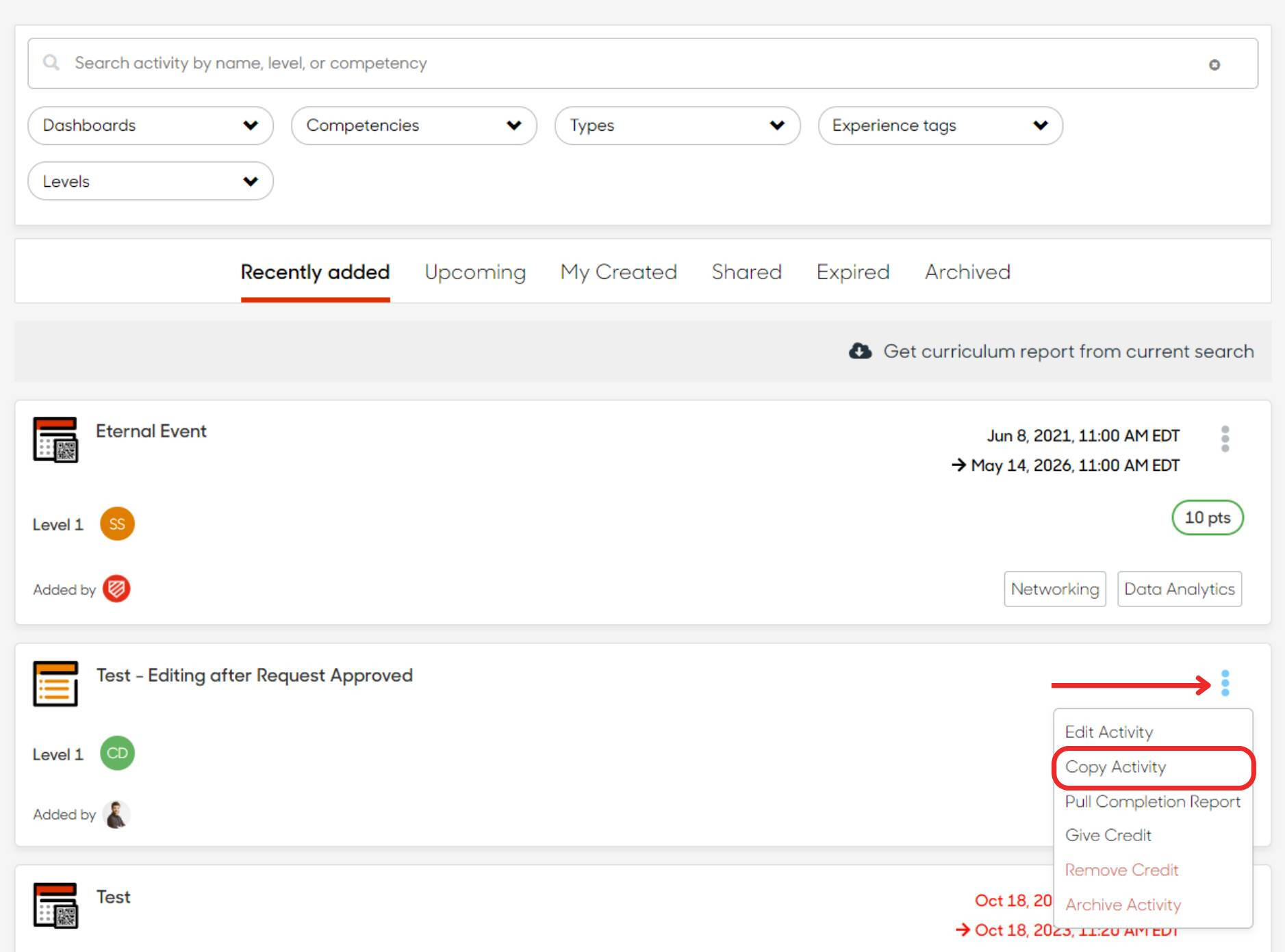
3. Make the required changes to your copied activity, and once complete, approve preview and post activity to finish the process. You are done!

Changes could include the date of the event, validation requirements, level of the activity, etc.
Please note…
If the original activity was a part of an experience set you will have to re-add the copied activity to the set.

1. Navigate to the Activities tab on the sidebar and find the event you are seeking. Click the vertical three dot ellipses in the top-right corner of the activity to expand the menu.

2. Click Get smart code.

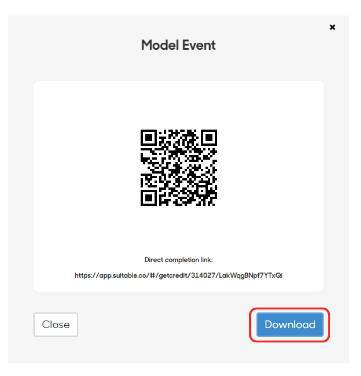
3. From there, a box similar to the below should pop up. Click Download then View.
- If students do not have the app or access to their phone at the time, you can provide them with the Direct completion link located below the QR code. Once the student clicks the link, they will be taken to app.suitable.co to sign in. Once they sign in on that webpage, the points that event's points will be added to their Suitable account.
Note: If you share a completion link to one student, they can re-share that link. Anyone with the link will be able to complete the activity. We recommend using caution when sharing completion links.
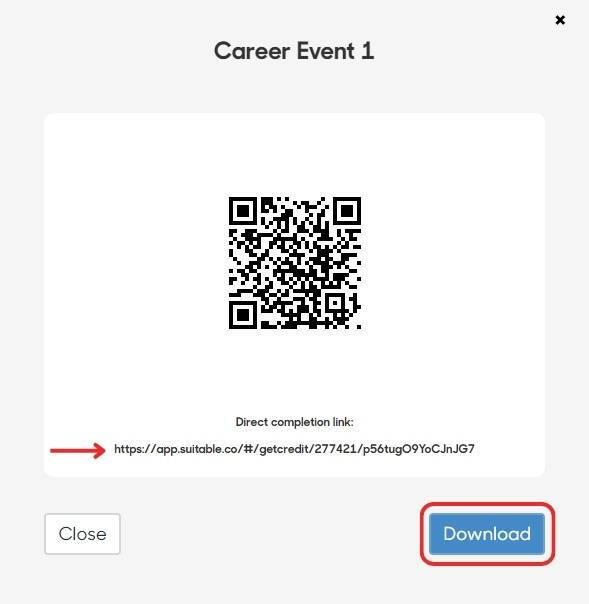
4. Upon clicking View, a branded PDF document will pop up with the QR Code for you to save and use elsewhere.
- For virtual events, we recommend showing the QR code/providing the completion link at the conclusion of the event.

Activity - engagement opportunities made available to your students through your student development program, whether that be a task or an event.
Activity Level - the level of engagement required of your students to complete an activity. Typically expressed as Levels 1 through 5 in the Suitable site.
Administrative Approval - a type of validation available for both event- and task-type activities. By enabling administrative approval on an activity, you are requiring that an administrator approve a student's completion of the activity before points are rewarded. To access your pending approvals, navigate to the Approvals tab in the Suitable site.
Badges/Achievements - acts as a container for activities that students can complete to earn a digital badge. Activities can be grouped together to form an achievable badge/achievement for students to work towards. Badge and achievement is used interchangeably.
Competency - skillsets that are chosen by administrators for students to work towards within your student development program. A common example of competencies would be the NACE Career Readiness competencies.
Completion - refers to when a student fulfills the requirements of an activity or a badge/achievement.
Dashboard - the first tab that you see when you sign into Suitable. This tab provides a high-level overview of your student development program's statistics, as well as contains shortcuts to other tabs, such as Student Management and Approvals.
Distribution List - A group of Push Notification recipients segmented by you, the administrator. Learn how to create a distribution list here.
Event - refers to a type of activity available in Suitable. Event-type activities will have a QR code validation and require a start and end date to be created. Event-type activities can be used for advising meetings, in virtual events, as well as at traditional in-person events.
Experience Categories & Tags - used to tag activities with important information and for easily sorting your activity reports. Experience categories act as the shell for experience tags. For example, an experience category could be "Student Population," indicating which student population the activity is available for, while an experience tag within that category could be "Honors Program" or "Athletics." Experience categories and tags can be managed under the Data tab in your Settings in Suitable.
Experience Set - acts as a smaller container for activities that students can complete to earn more points. Experience sets can be used to organize similar activities, as well as to create optional activities for completion of a badge/achievement.
Give Credit - refers to giving credit to students after an event has passed its end date who may not have been able to scan the smart code/QR code at the event. This action can be done by navigating to the activity, clicking on the three dots on the right side, and choosing Give Credit. Credit can be given individually or in bulk.
Incentive - motivation for students to complete an activity or badge/achievement. Incentives can be experiential, such as a 1-on-1 meeting with an employer, or tangible, such as a water bottle or laptop sticker.
Leaderboard - an area where students can see how many points they have earned and how they are generally progressing among their peers. The Leaderboard can be used for competitions among individuals or student groups, and can also be shared across campus to inspire engagement.
Point Total Activity - also known as PTA. A container of activities that requires a certain number of points to be completed in a level or competency. PTAs can have multiple level and/or competency requirements.
Pathway - refers to the different sites that students or administrators can access, tied to their school/program. If your school/program has multiple pathways available, these can be accessed by clicking on the pathway logo in the top left corner of Suitable.
Points - the numerical value associated with an activity that students can earn when completing an activity in Suitable. Points are associated with each of the five (5) levels, with Level 1 activities earning 10 points, Level 2 activities earning 20 points, Level 3 activities earning 50 points, Level 4 activities earning 75 points, and Level 5 activities earning 150 points. Activities can be worth more points if they are paired with multiple competencies.
Portfolio - used within a student's scorecard to display deliverables the student has submitted to activities, as well as independent work the student has completed that they've added to their portfolio. To view a student's portfolio, you can search for the student in Student Management, under settings, then click on the blue person icon. This will take you to the student's scorecard, where you can then navigate to the Portfolio tab at the top.
Push Notifications - a form of communication that is sent directly to students' mobile devices via the Suitable mobile application. Push notifications generally contain links or small bites of information to engage students with their program. Push notifications can be created by administrators in the Notification tab of their Suitable site.
Scorecard - a feature within Suitable that acts as a co-curricular profile for students to display to employers or any other interested parties, showing the badges/achievements they have earned, how many points they have accumulated in each competency area, and any submissions or independent work items they have made displayable to the public via their Portfolio tab. To view a student's scorecard, you can search for the student in Student Management, under Settings, then click on the blue person icon. This will take you to your student's scorecard.
Smart Code/QR Code - a form of validation used for event-type activities in Suitable. Smart codes/QR codes are made available at events, where students can scan the code with their smartphone and automatically receive points. Smart code and QR code is used interchangeably. To retrieve a smart code/QR code for an event, navigate to the activity you need the code for, click on the three dots on the right side, and choose Get Smart Code. An unbranded code will be provided to you, but you can also obtain a branded code by choosing Download, then View.
Suitable Mobile App - the Suitable mobile application made available for students on their smartphone. This app is essential to taking advantage of all of Suitable's functionalities. The app is available on both the App Store (Apple devices) and Google Play Store (Android devices).
Suitable Web App - the Suitable website made available for both students and administrators. The website is essential for administrators in managing their student development program, and students in submitting to certain activities, such as those with a submission-based validation. The Suitable website is accessible at app.suitable.co.
System Level - refers to the level that students have achieved in completing activities. Typically reflected on the Leaderboard and on student scorecards. Students need to complete three (3) activities in every competency at each activity level to move up a system level.
Task - refers to a type of activity available in Suitable. Task-type activities have the option of requiring a submission or reflection validation, or no validation at all. Task-type activities are typically used for asynchronous activities that do not require attendance to an event (such as watching a YouTube video), as an after-event reflection space, or for students to submit a deliverable from an experience (such as a resume or capstone paper).
Validation - what students must do to complete an activity and earn points. There are four (4) validation types available for activities: written reflection, portfolio submission, administrator approval, and smart code/QR code validation (reserved for event-type activities only). More information about validation types can be found here.