
Tips for Teaching Multiple Delivery Courses with Remote Learners
This webpage was created to provide tips for teaching "Multiple Delivery" courses, using synchronous tools to engage learners when students are in the seat and connecting virtually.
About Multiple Delivery
GVSU Definition of Multiple Delivery Method –
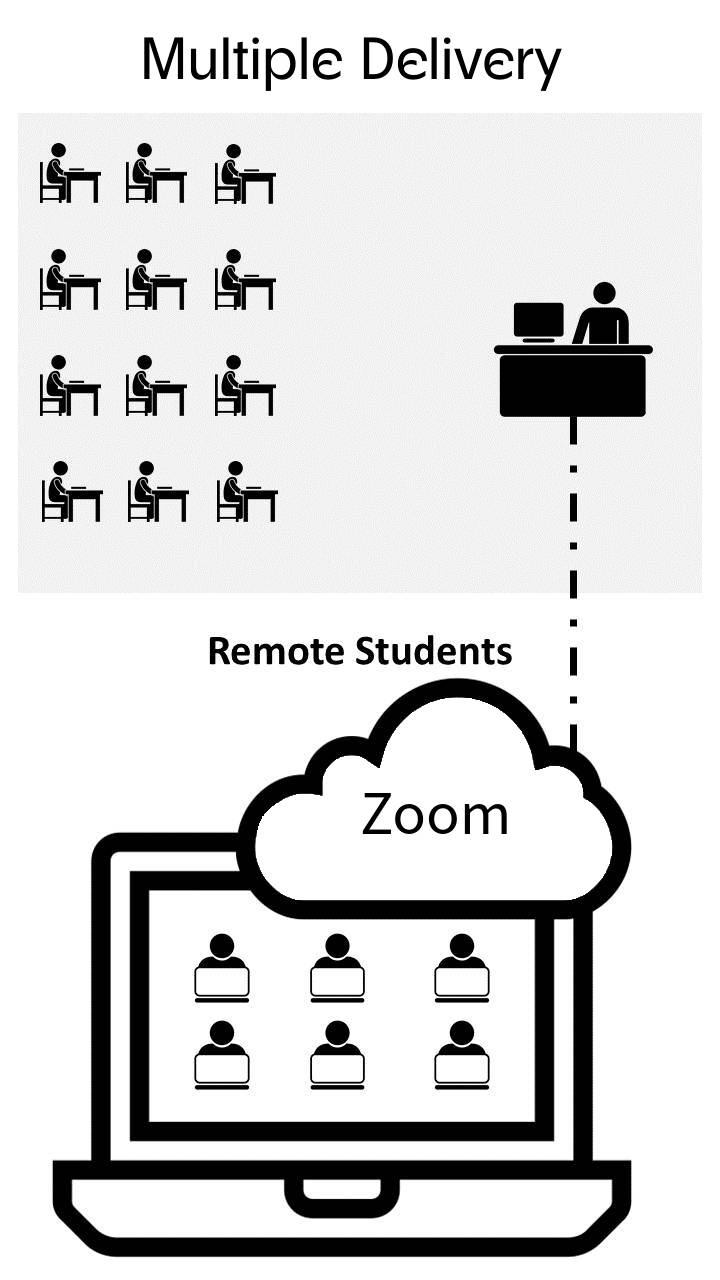
Multiple Delivery courses give students the ability to choose to attend some or all class sessions either in-person or online. The option of course formats available to students will vary from course to course, but may include some of the following options: In-person class sessions; Attend online class sessions synchronously; View recorded class sessions asynchronously; or some combination of the three previous options. In Banner, students will see two types of Multiple Delivery courses: Fixed or Flexible. More information about course delivery options can be found on the Registrar's website.
²
Technology Support
GVSU IT Services - Technical support, problems, login, and error message questions.
GVSU Blackboard Resources, Tutorials, and Support - Teaching with technology, Blackboard how-to, and general questions.
GVSU Zoom Resources, Tutorials, and Support - Information and help using Zoom.
Accessibility and Student Privacy Notices
- Accessibility Notice - If you have a student with a documented disability, please consult with the Student Accessibility Resources department if the student will not be in person and need live captioning or other accommodations.
- Student Privacy Notice - If you are using Zoom, please review the Zoom Security web page to ensure your session is set up to help prevent "zoom bombing" or "gate-crashing".
- Recording of Courses Notice - The Office of the Provost provides guidance for the recording of courses, including the following: "If students are part of any course-related recordings (voice and/or image), then a syllabus statement about the recording is required." It is good practice to inform students as the live session begins that the class session is being recorded.
- FERPA Recording Content Form - Merged courses do not require consent if you record class meetings in Zoom and want to share these recordings across the merged sections. However, student consent is necessary if the recording is going to be shared with students in other sections. GVSU faculty and staff can obtain consent to record class meetings by using the FERPA Recording Consent Form (located on the Registrar’s webpage under Student Forms). If the recording is instructor-only (and doesn't contain any student information such as name, voice, image) then student consent is not necessary and those recordings can be used in multiple sections.
STEP 1 - Before your First Class
PREPARE your Blackboard Course Site
- Upload your syllabus, faculty contact information, content, assignments, discussion boards, learning activities, grading requirements, or other course materials into Blackboard.
- Include technology hardware/software requirements (webcam, headset, speaker, microphone) and connection information for remote learners.
Classroom Support
- Should you want additional guidance on use of the technology in the classroom, you can submit an IT Classroom Ticket through our Service Portal and request a technician meet you in the classroom. Please submit these requests at least 72 hours in advance if possible.
STEP 2 - Inform your Students prior to First Class Meeting
- Communicate with your remote students well before your class meeting.
- Remind your students to set up and then log into their official GVSU Zoom account before attempting to join your meetings. When students use their GVSU credentials, they are properly authenticated, which helps avoid access issues. Logging in also ensures their correct name appears in the participant list, making it easier to take attendance, manage participation, and assign breakout rooms accurately.
- In your Announcement, provide students with specific details regarding your meeting dates/times/physical location, technology hardware/software requirements, a link to your virtual session, and a class agenda.
- Share your remote learner student expectations. Here is a sample "student expectations" list.
TIP: Be sure to discuss requirements for attendance or participation requirements for both the in-seat and online students.
SHARE Class Meeting Agenda
Share an agenda with your students prior to your synchronous meeting.
Agendas do not have to be long, involved, or even particularly detailed - but share your plan with your students ahead of your meeting so that you can stay on task and they can be better prepared as to how they will be participating.
The agenda could even be a brief outline of what topics the class meeting will cover. Here is an example of a more detailed class agenda that also includes the weekly participation requirements.
STEP 3 - Start your Class Session
START Zoom
On the day of your in-person class and live remote session:
- Power up the classroom data projector and desktop computer if needed.
- Log in to the instructor workstation and launch the Zoom application.
- Adjust in-room web camera.
- Test audio, video, and screen-sharing options as you prepare for class.
- Preload all necessary files and open web links in your Bb site whenever possible for easy access and reference.
- Have notes next to you, and bookmark anything you need for quick access or reference.
- If using your computer, clear your desktop of unnecessary files, browser tabs, or open applications.
WELCOME Students and Remind Students to Mute
- Always start class by greeting your in-seat and remote students.
- Encourage your remote students to mute their microphones until they are ready to talk or ask a question.
- As the instructor, you can also mute all microphones or individual microphones in Zoom. You won’t want to hear background noises from students joining remotely so their microphones must be muted.
- If any of your in-seat students bring a device and also connect to your virtual session, they should mute their speakers to avoid echo audio feedback.
TIP: Recruit students in the classroom to join a virtual session to help monitor the remote learners' chat, activities, and needs.
SHARE Content and Course Materials
- Use the classroom data projector to share your screen, camera, or application windows to ensure content is available to your remote learners and in-seat students.
- You may need to use the “change camera” icon if you are also connecting to a document camera to share content. (Multiple cameras are supported by Zoom.)
MONITOR Attendance/Participation
- If you are requiring student attendance or participation, once you launch your session in Zoom, you will see the students joining your session in the participant list.
- If participation is a requirement, you may want to get in the habit of cross-checking your class list against those in the room and those joining virtually. You can download a copy of your class list from Banner.
- Finally, having students complete an online activity can virtually register their attendance.
RECORD your Session
- Zoom cloud recordings have a total GVSU limit of 18 TB. Please see the FERPA and student privacy notices at the top of this page.
TIP: If live streaming your class session is NOT important, Panopto is a better solution to capture your lecture.
STEP 4 - Review the Top 10 Multiple Delivery Methods Teaching Tips
TIP 1 - Design your course to be asynchronous with online resources.
- While you will be holding class live, building up asynchronous materials to support your remote learners, such as content, assignments, assessments, discussions, learning activities, and grades, will be essential.
TIP 2 - Balance In-Seat and Remote Learners
- Teaching in-seat students and remote learners requires a careful balance between remembering to include “ALL” students in the classroom conversation.
- To help monitor remote learners, you may consider having a student in the classroom join the virtual session to help monitor the remote learners' chat, activities, and needs.
- Go over some rules of the road, or allow students to create “meeting norms” for multiple delivery instructions. Many students haven’t had these learning options before and will need coaching.
- Review sample ideas for generating Zoom “Meeting Norms”.
- Students will need guidance on “how” and “when” to interact with course content, the instructor, and other students.
- Attendance and online participation expectations should be included in your syllabus. (See this example.)
TIP 3 - Repeat Questions from In-Seat Students for Remote Learners
- It’s important that your in-seat students and your remote learners can always hear the dialogue that is taking place.
- ALWAYS repeat the questions/comments that are said in class to your remote learners.
- When speaking, encourage both remote and in-seat students to say their names so they can be easily identified. For example, “This is [your name], and I have a question. This helps individuals who are accessing the session remotely to get to know students who are participating in-seat.
TIP 4 - Look into the Camera when Addressing Remote Learners + Stay close to your Microphone
- Your remote learners must feel connected to you and your content, so ALWAYS look at them via the web camera when talking to them.
- It will feel more natural to make continual eye contact with your in-seat students or your data projector (which has your students videos up on the screen) so practice making eye contact with both the web camera and your in-seat students throughout your session.
TIP 5 - Ask Questions and Comments from Remote Learners and Allow Time for Engagement
- Engagement Option 1: Ask remote learners to unmute their microphones and speak.
- Engagement Option 2: Ask remote learners to use the “raise hand” option to address specific students in a specific order.
- Engagement Option 3: Ask students to use the chat option and monitor their responses from your instructor station or the data projector display.
- Engagement Option 4: Use the polling options available on Zoom.
- Don’t forget there are real “live” people in the class with whom to interact.
- Encourage students not to be passive learners but to speak up and ask questions. If they don’t participate, it is easy to forget that they are there. Encourage remote learners not to multitask during synchronous class meetings and to treat your synchronous class meetings as though they were attending in person.
TIP 6 - Engage through Annotation
- Use the whiteboard found in Zoom to encourage engagement. It’s especially useful for brainstorming and sharing ideas.
- In-seat students can also participate in the whiteboard with their own device if connected to your session.
- You can also use Google Docs or OneDrive links in the chat area so that students can participate and edit content in “real time.” The same thing could happen if you are using Padlet (a virtual bulletin board).
TIP 7 - Facilitate Small Group Discussions
- If you typically break up your class into smaller groups throughout class to participate in small group discussions, think-pair-share, etc., use the breakout room function in Zoom to simulate a small group discussion experience to your remote students.
- Give clear directions to your small groups and set a timer or clear time limitations for bringing the whole class back to the “main room” of your session.
- ALWAYS ask remote students (who participated in your breakout room discussions) to share what happened in their small groups.
- Here are some more tips for managing breakout rooms in Zoom.
TIP 8 - Add Syllabus Information to Support Students
- Whenever possible, reboot your computer prior to a session.
- Encourage all learners to test their microphones, web cameras, and speakers at the start of every virtual session.
- Remember to consider video backgrounds, and try not to sit directly in front of or beside a bright light source or a distracting environment. Experiment with moving lamps and your camera until you can see your brightly lit face on the screen. Covering a bright window or moving to another location may help.
- When possible, try to attend your class meetings in quiet, indoor locations to control ambient noise. If you can't participate from a quiet area, mute your microphone before joining the class meeting. You can unmute when you need to speak unless the instructor has chosen to mute all students.
TIP 9 - Asynchronous Communication Tips
- Communicating with your students outside of regularly scheduled class periods is vital to establishing trust and a sense of community.
- Use Announcements to provide timely reminders before and after class about assignments, due dates, etc.
- Announcements can help prep students for the day's synchronous session and recap, reinforce, and clarify important ideas revealed in class activities and discussions. You can also post the link to your virtual session recordings as a follow-up to your meetings.
- Establish and monitor online discussion activities in Blackboard between synchronous class meetings.
- In synchronous class sessions, refer to specific discussion threads and their authors to clarify that you value that learning activity and guide students to the most important aspects of the course content.
TIP 10 - Be Aware of Screen Sharing
- When using Zoom, be aware that you are sharing your screen. Take note of what applications or content you have visible. Ensure you do not have any confidential or private information that may be visible. Before class, clean up your desktop and close any applications, browser tabs, or windows that are not needed.
Additional Resources
- EDUCAUSE 7 Things You Should Know About the HyFlex Model
- Building a HyFlex Course to Support Student Success - A Quality Matters webinar. Dr. Wendy Tietz from Kent State shared her extensive experience with designing and delivering HyFlex courses.
- EdTech Books - Hybrid-Flexible Course Design - An eBook covering strategies for implementing student-directed hybrid classes.
- Faculty Focus articles on Hyflex Instruction - Articles related to Hyflex Instruction published in Faculty Focus.
- 9 Best Practices for Engagement in Virtual Meetings - Tips for delivering online meetings.