

Digital Passport Instructions
Creating your Statistics Voyage Passport Instructions:
If you have already worked with your digital passport previously and want to make changes to it skip to [Access your existing digital passport] to access your passport so you can add new stickers to it.
Digital Passport How-To instructions described below are available for download by clicking here. We encourage you to download the file, open it, and follow the instructions. The downloaded file has embedded images that make creating the passport and accessing stickers easier to follow.
How to Access Adobe Express-
Follow these steps to get started:
- Go to Adobe Express
- Enter your GVSU email address (e.g., [email protected]) and click Continue
- Choose Company or School Account if prompted
- Log in with your GVSU credentials when redirected to the GVSU sign-in page. Tip: If you're signed into another Adobe account (like a personal one), make sure to sign out or switch to your GVSU account to access all features.
Customization-
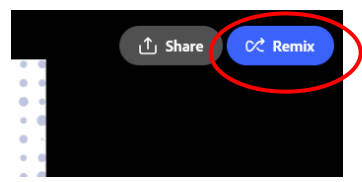
- Once you make your account you can access the Stats digital passport (see, Stats digital passport instructions) and make your own. Use this link:Stats digital passport
- Click the “Remix” button
- Now it will bring you into the Adobe Express Editing Suite where you can customize your passport
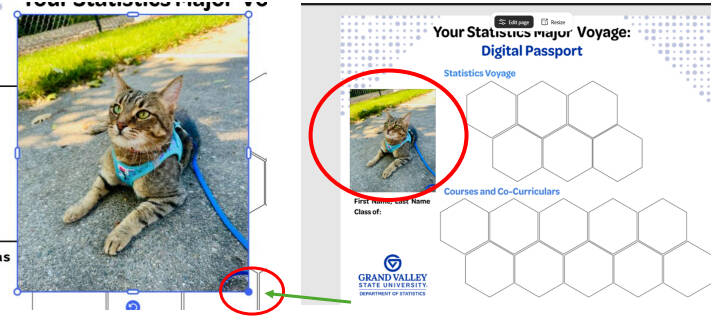
- Start by copying with “Ctrl+C” & pasting with “Ctrl+V” a picture of yourself into the rectangle labeled “Add your photo here” and resize it to fit the margins with the resizing tool:Adobe Express Editing Suite
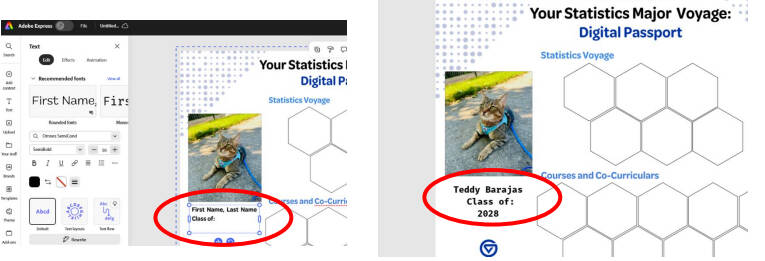
- Next click the name box and enter your first and last name instead of the text called “First Name, Last Name” and your expected graduation year
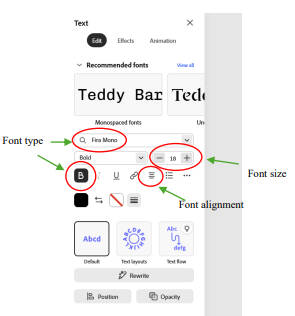
- You can also change the text font, alignment, size, and boldness using the Text edit tool on the left side of your screen:
Adding Stickers-
- Now you can add the relevant stickers to the passport. There are many digital stickers including ones for specific Stat courses, DataFest, internships, Soup and Chili cook-offs and more!
- To find the Statistics Voyage stickers follow this link. There are two places for stickers on your Passport: Statistics Voyage and Courses and Co-Curriculars. Any sticker that starts with the word Voyage: should be added to the Statistics Voyage part of your Passport.
- Once you have identified the stickers on the Google Drive that you want to add to your passport you can download each one.
- To download a sticker, select the one you want and click this icon.
- Or you can click the 3 dots on the far right and a drop-down window will display, you can then select download.
- Go to your downloads folder and open the sticker
- It will open as a picture: click here
- Copy with “Ctrl+C” & paste with “Ctrl+V” the sticker into your passport file on Adobe Express:
- Resize so it fits into the hexagon frame using the corner markers of the resizing tool. ***Try not to distort the image while resizing.
- Continue adding all your relevant stickers. ***You can add stickers throughout your time at GVSU and your passport will automatically save.
- When finished you can download and add to your Reflective Portfolio in OneDrive.
Access your existing digital passport
To access your existing digital passport just log back into Adobe Express click on Your Stuff and choose the image of the existing passport. Tip – if you use the remix link again you make a new file, and the passport will be blank (you probably don’t want to do this)
Page last modified August 19, 2026