
Restore Previous Versions of Files or Folders
If a file gets deleted or overwritten by mistake, you may be able to recover it by using the Restore previous versions feature of Windows 7, here is how to do this.
- Right-click the file or folder, and then click Restore previous versions.
- You'll see a list of available previous versions of the file or folder. The list will include version(s) for any restore point.
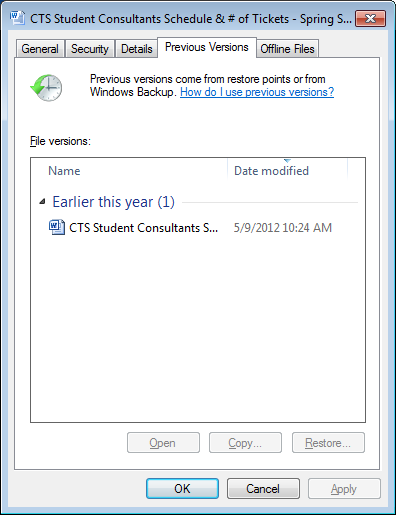
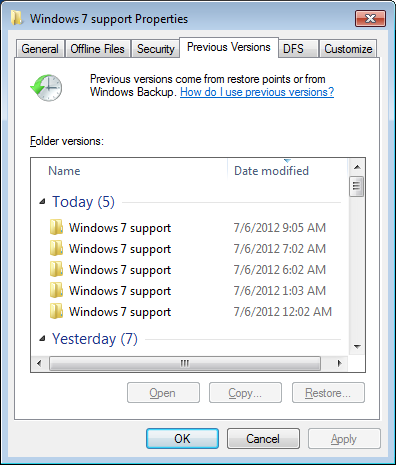
3.Before restoring a previous version of a file or folder, select the previous version, and then click Open to view it to make sure it's the version you want.
4.To restore a previous version, select the previous version, and then click Restore.
Warning: The file or folder will replace the current version on your computer, and the replacement cannot be undone. If you want to keep the current version, you should perform a 'Save as..' and rename the file so that it the original does not get over-written.
Note: If the Restore button isn't available, you can't restore a previous version of the file or folder to its original location. However, you might be able to open it or save it to a different location.