
Teamworks Hub (Old)
Navigating Teamworks Hub App
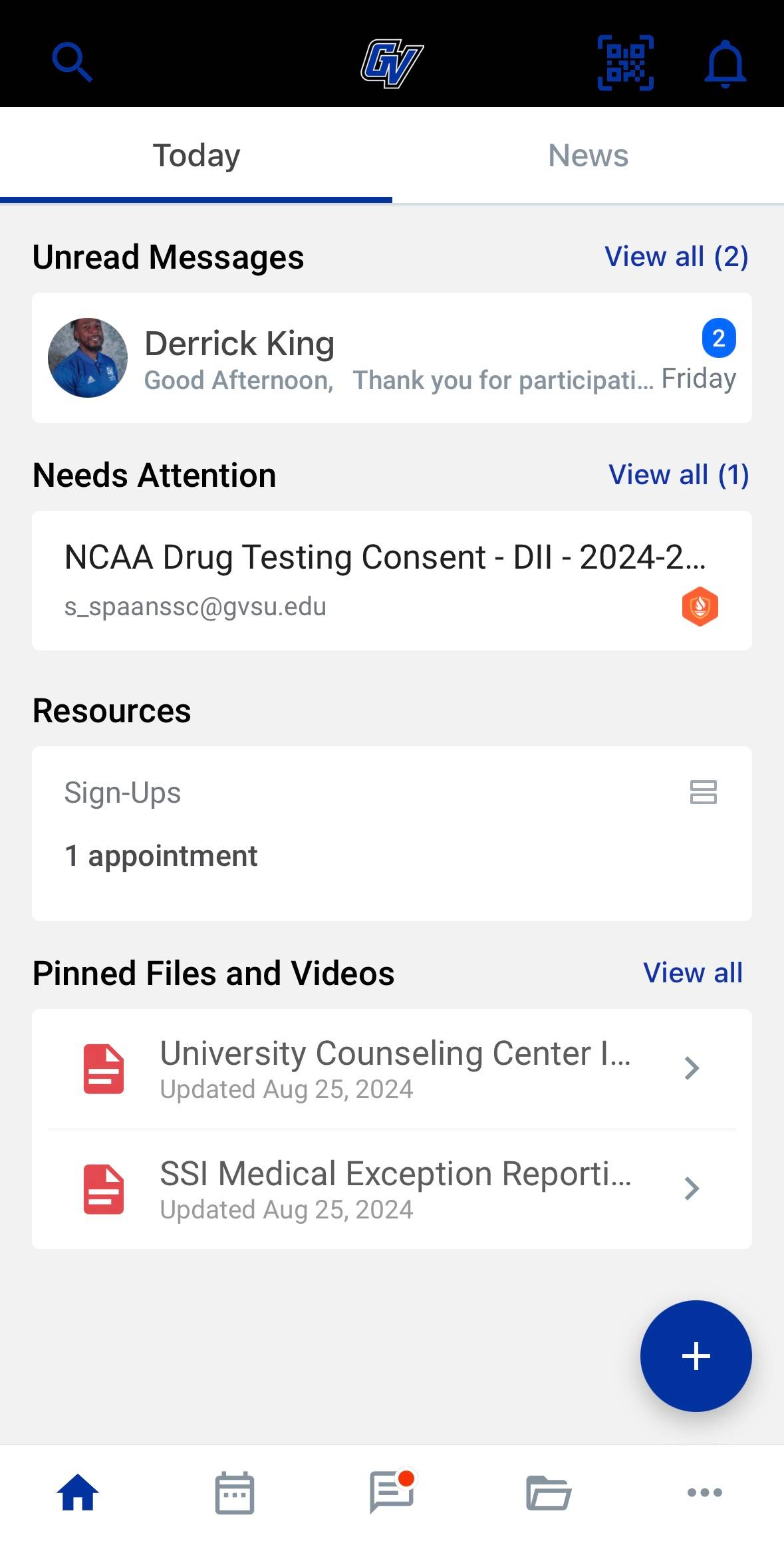
Here is the Teamworks Hub home page. This page will show you highlights, including unread messages, forms that need to be completed, pinned files and videos, and other resources.
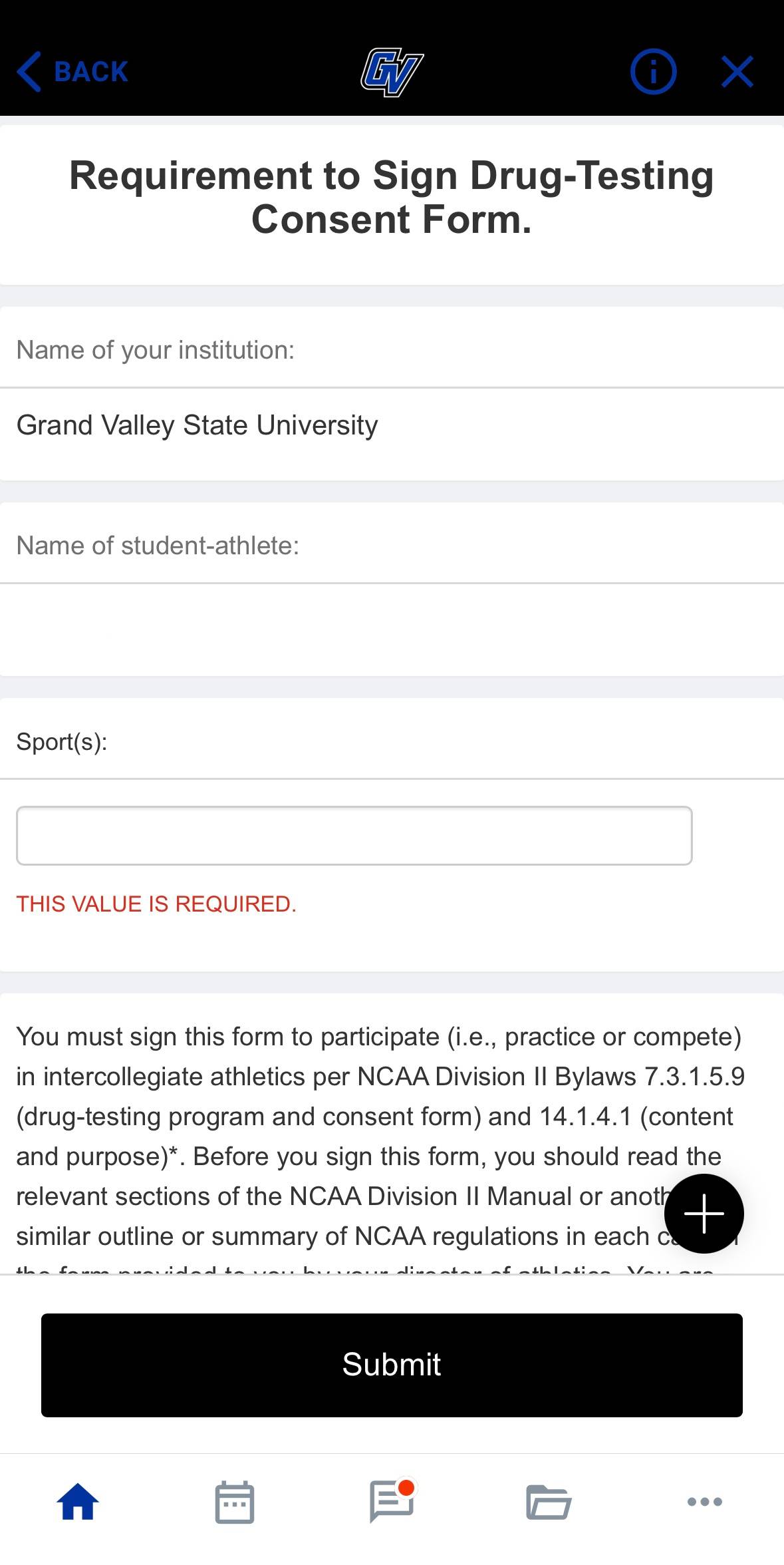
If you tap the form that needs attention, you can complete it right from your phone. Make sure to complete all the required information and click submit when you are done.
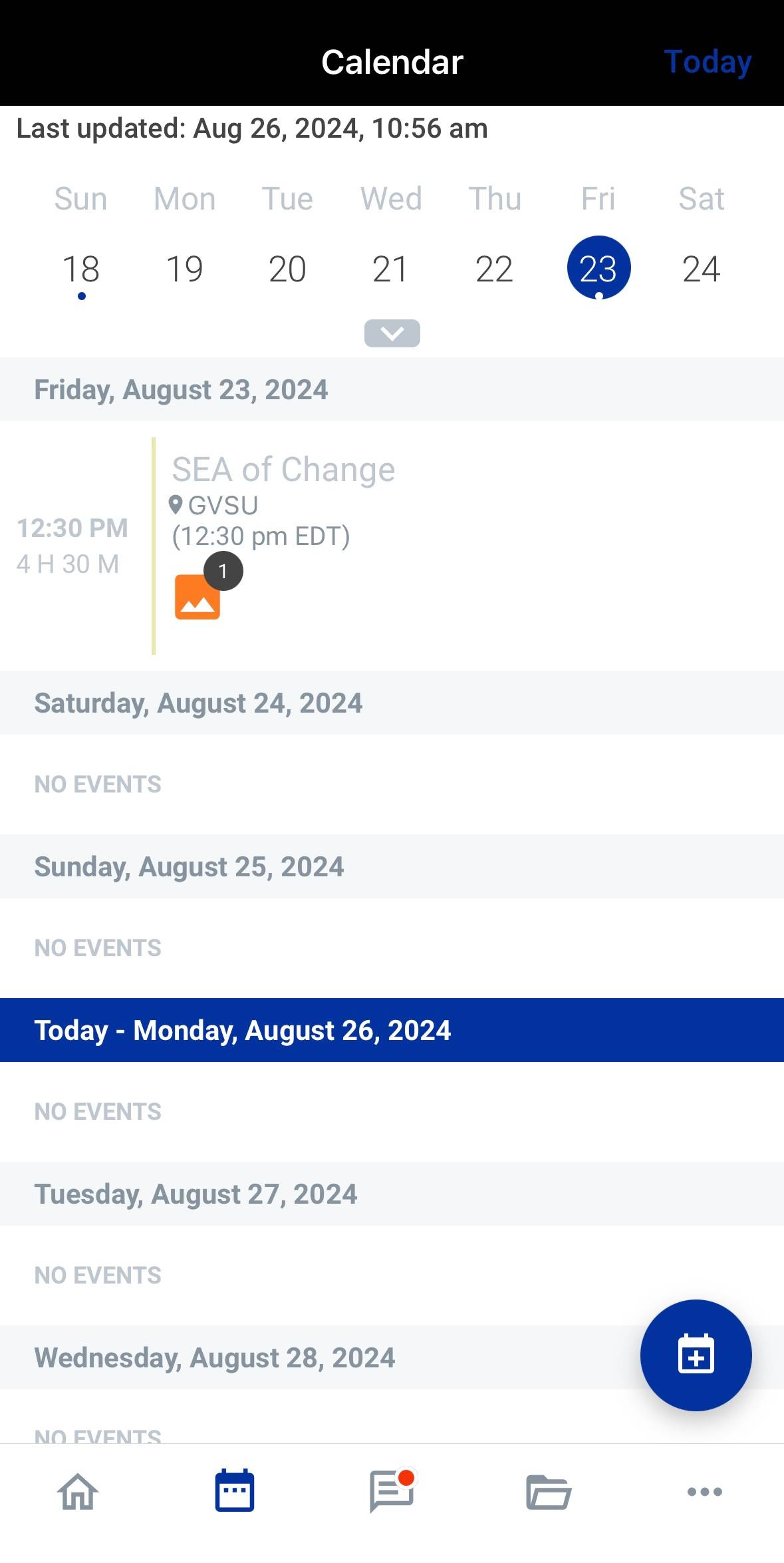
Navigating the bottom bar, you can make your way to the calendar. Here you can see any upcoming events, practices, meets, etc. You can also add your own events or classes to this calendar by tapping the plus button in the bottom right corner.
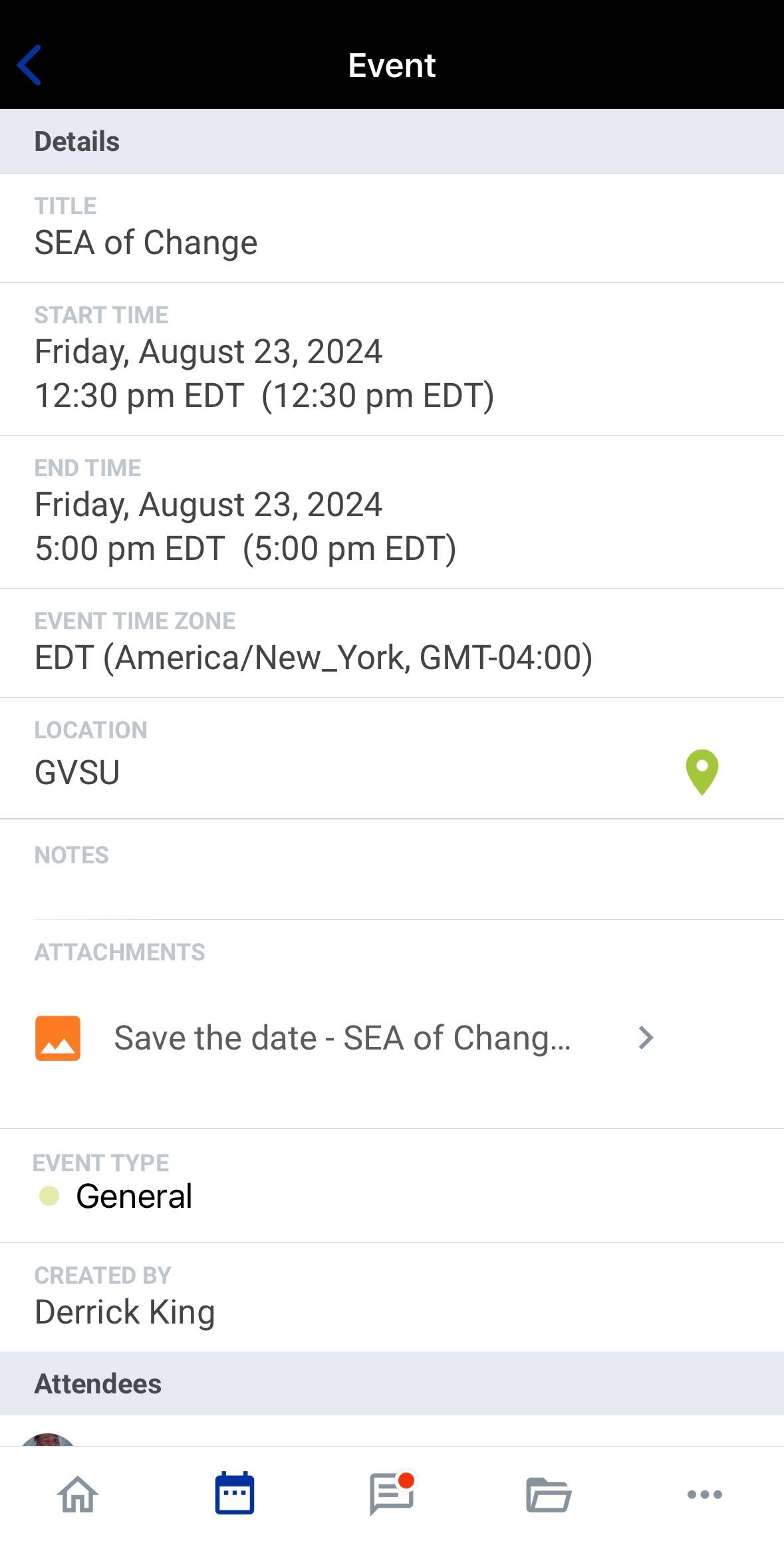
Tapping on an event in the calendar will give you more information. Here you can see the start time, location, attachments (if applicable), and who is attending the event.
[1725035424].jpg)
The next tab on your bottom bar is the messages tab. Here you can start or respond to messages from coaches, staff, and other athletes. Click the plus button in the bottom right of the screen to send messages.
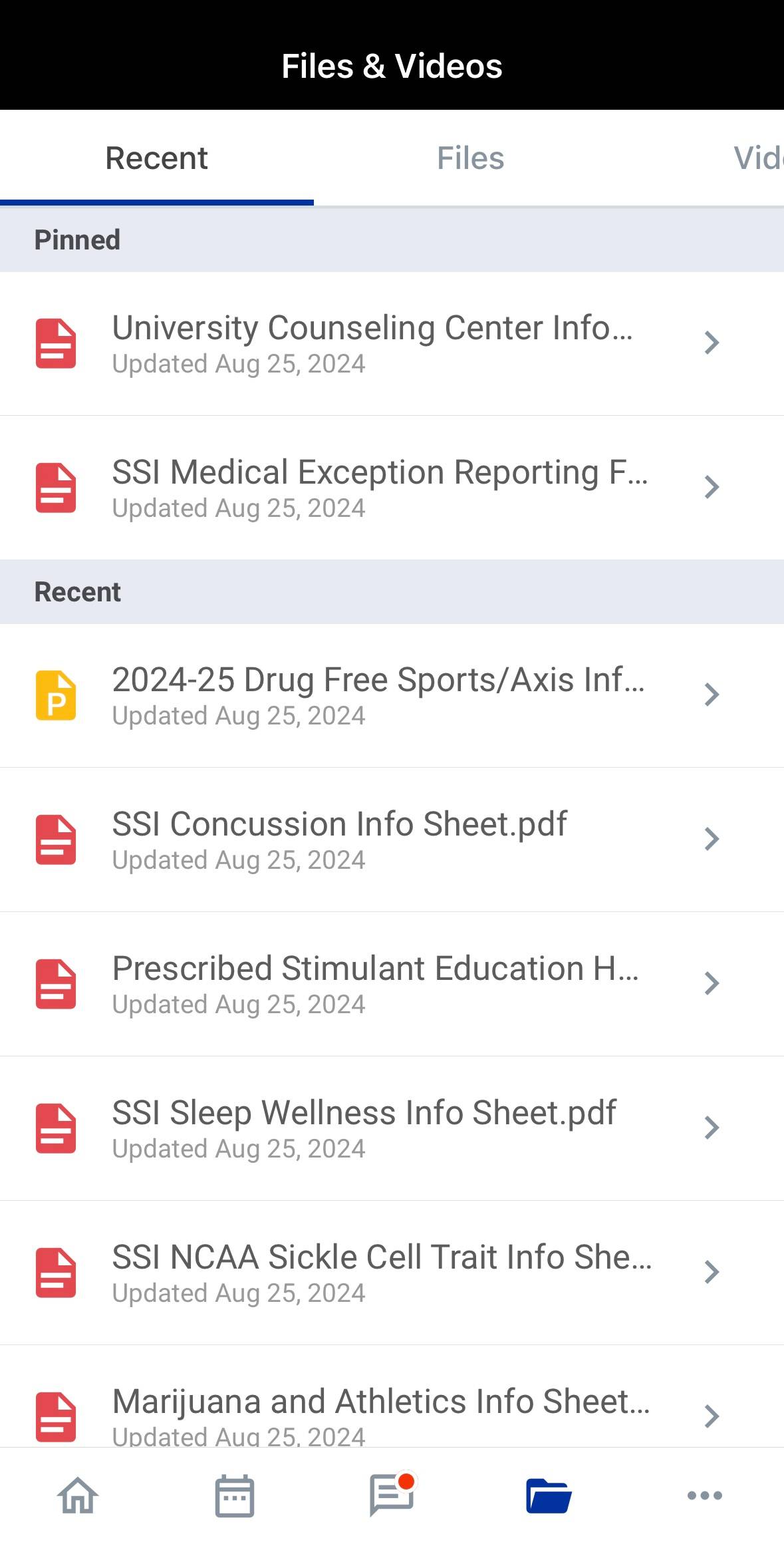
The fourth tab on the bar is the files & videos tab. Here, you can see different files and videos that have been uploaded by coaches, athletic trainers, and other staff.
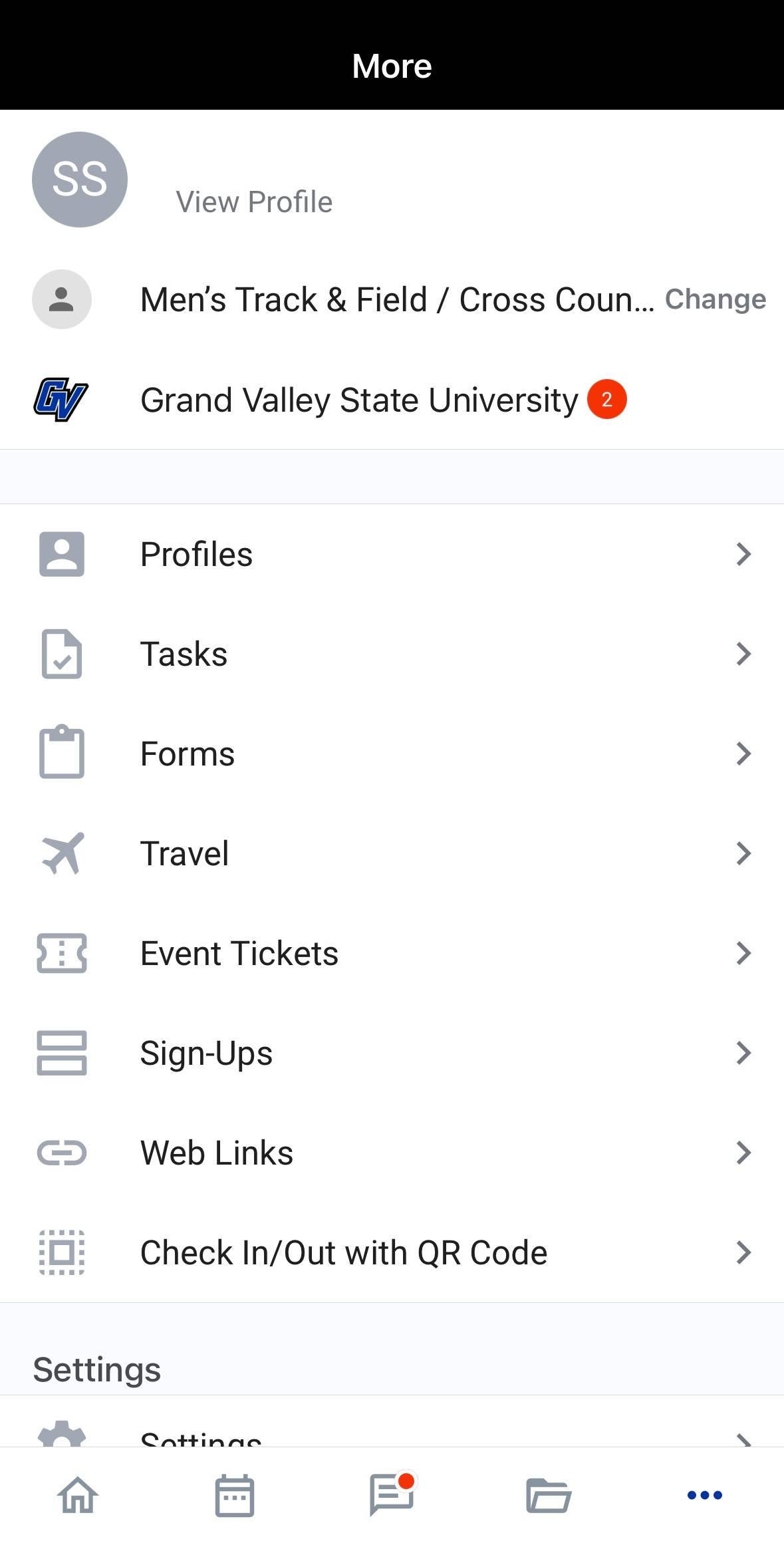
The final tab on the bottom bar is the more tab. Here you can find tasks you need to or have already completed, forms assigned to you, travel itineraries, event tickets, and more.
Completing Event Certification
[1726062143].jpg)
When you are tasked with completing an Event Certification, you will receive an email and a notification from the Teamworks Hub app. Start by launching the app and tapping the Event Certification task under the Needs Attention tab.
[1726062384].jpg)
Next, tap the Complete Task button at the bottom of the screen to get started with the Event Certification.
[1726062502].jpg)
Finally, here you can certify the events, practices, games, etc. that you attended. If you see an event that you did not attend on this list, make sure to select No and type the reason for missing the event. Once you have reviewed the list of events, click the Submit button at the bottom of the screen.
Sign Up for Appointments
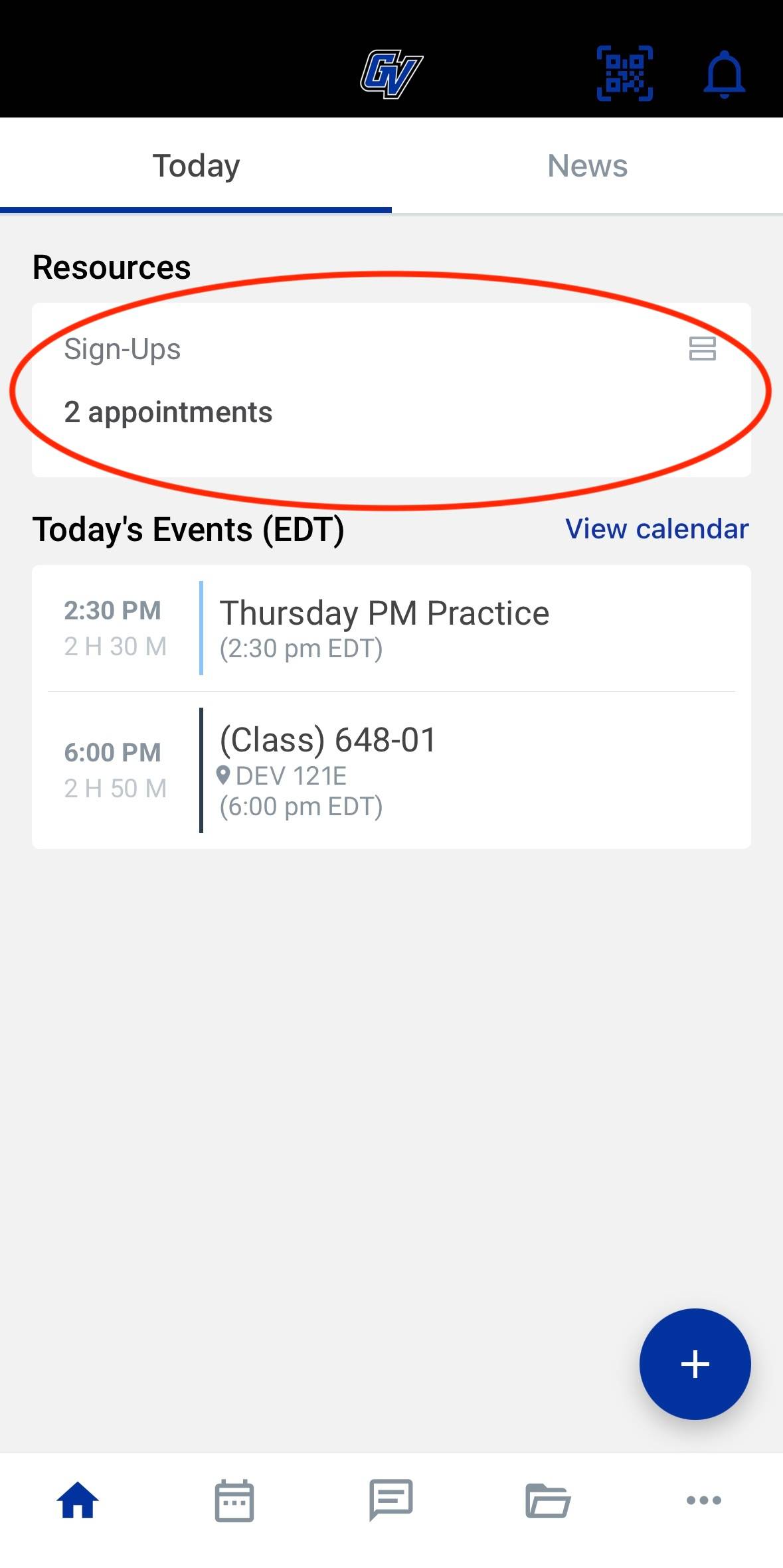
To see appointments that are available to you, launch the Teamworks Hub mobile app. On the homepage, under Resources, tap the sign-ups tab.
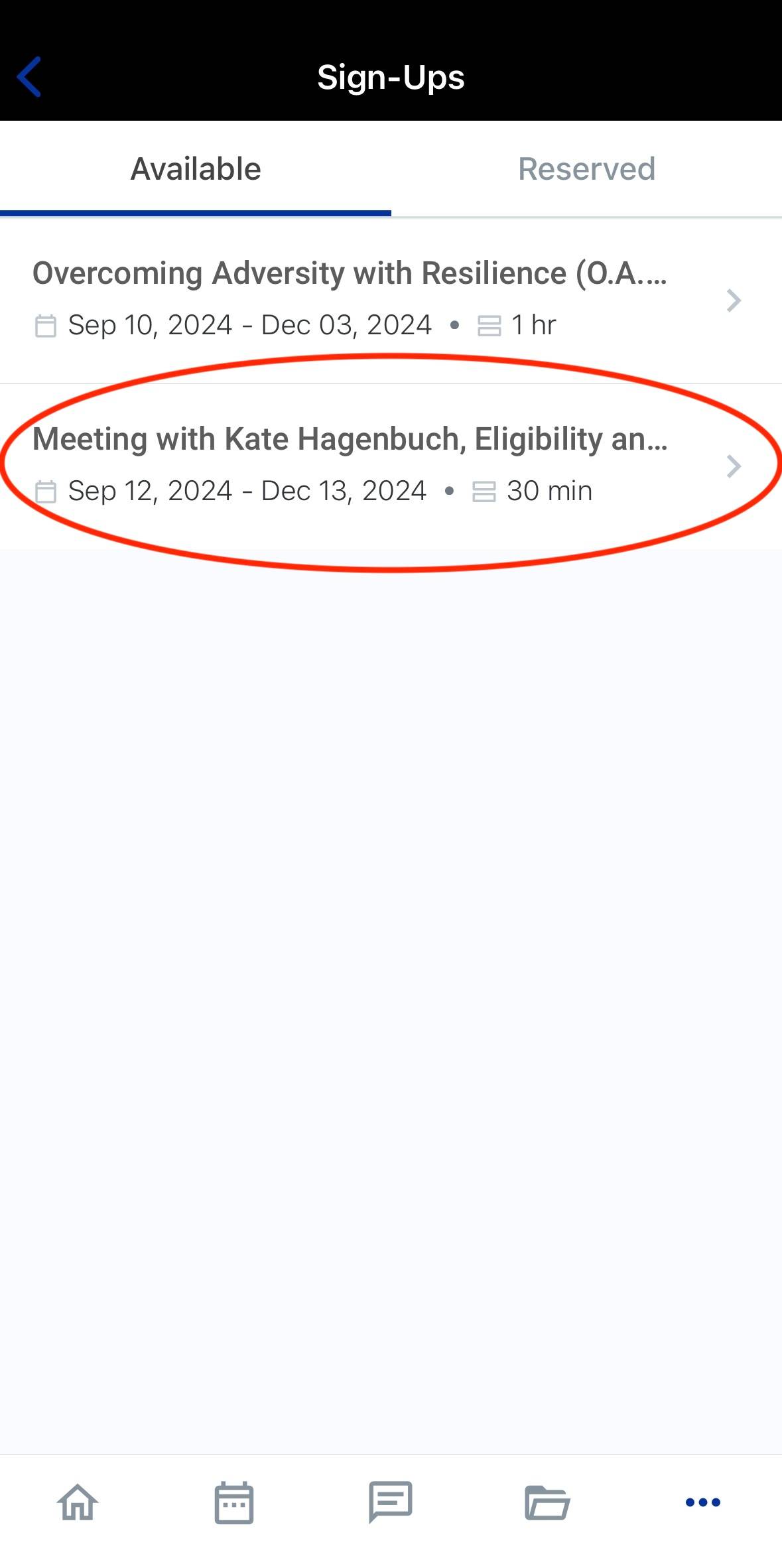
On this page, you will see all the appointments that are available to you. Tap the one you are interested in.
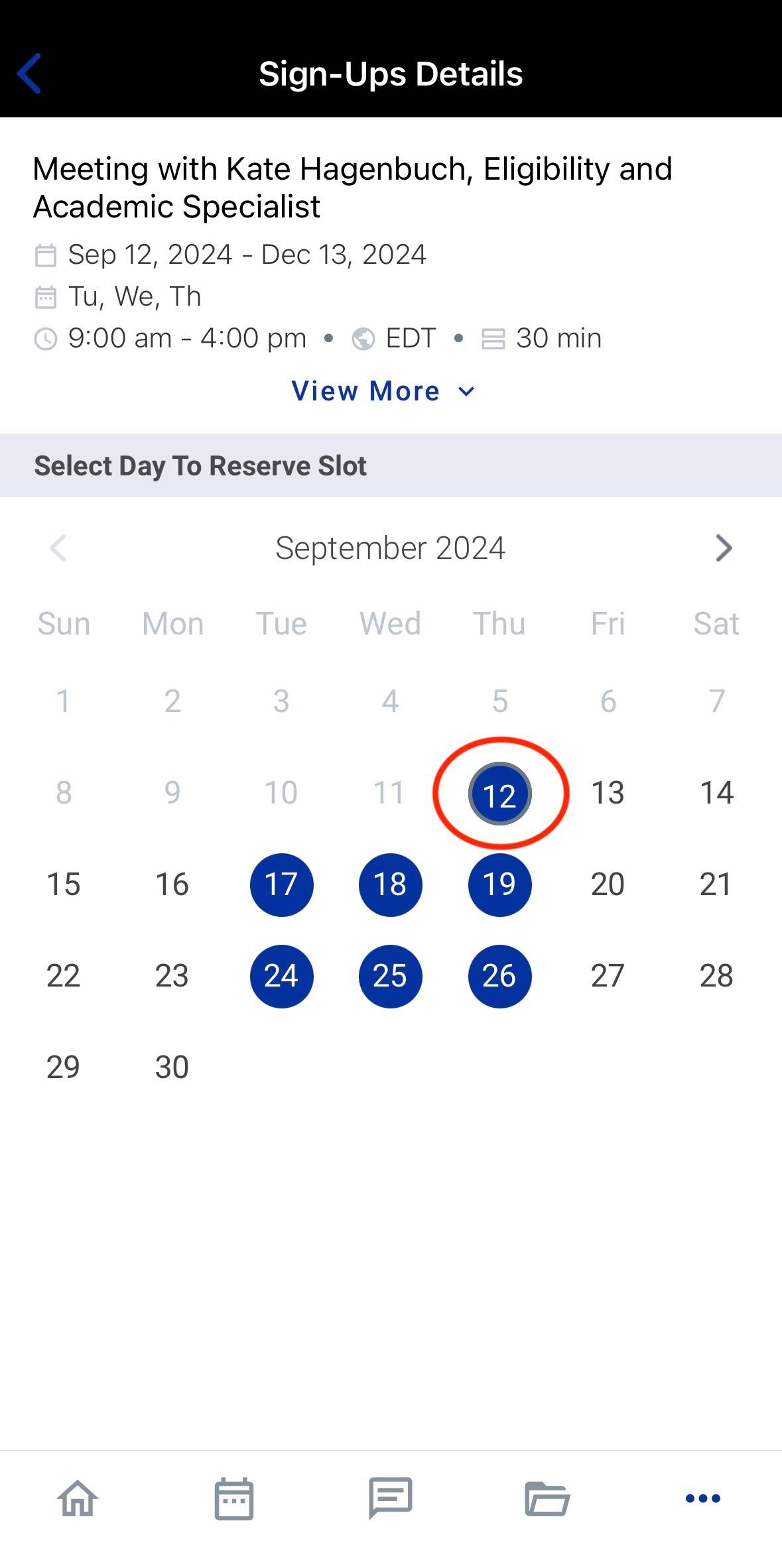
Here you will see a calendar of the available dates and times to sign up for. select a day that works for you.
[1726159900].jpg)
Once you select a date, a list of available times will appear. Select a time that works for you and make sure to look out for schedule conflicts. When ready, tap the reserve slot button at the bottom of the screen.
[1726159923].jpg)
Under the reserved tab of the Sign-up page you can see all the appointments you have signed up for. Tap the specific appointment to see more information about it.
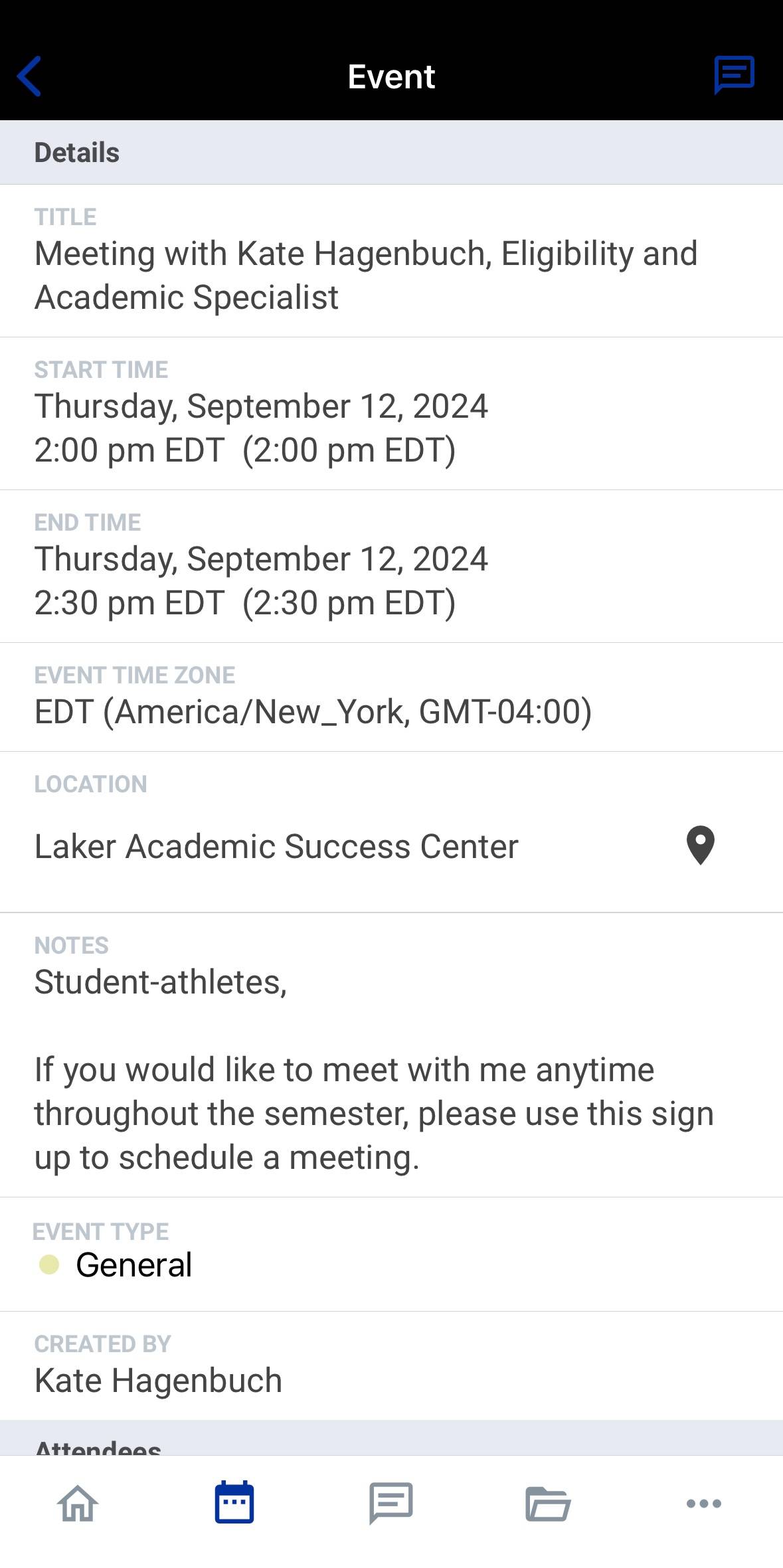
Here you can see all the information about the appointment, including the time, location, and any notes. This is also where you can reschedule or cancel the appointment. Any appointments you sign up for will also be shown on your Teamworks Hub calendar.
Sync your GVSU Calendar with Teamworks
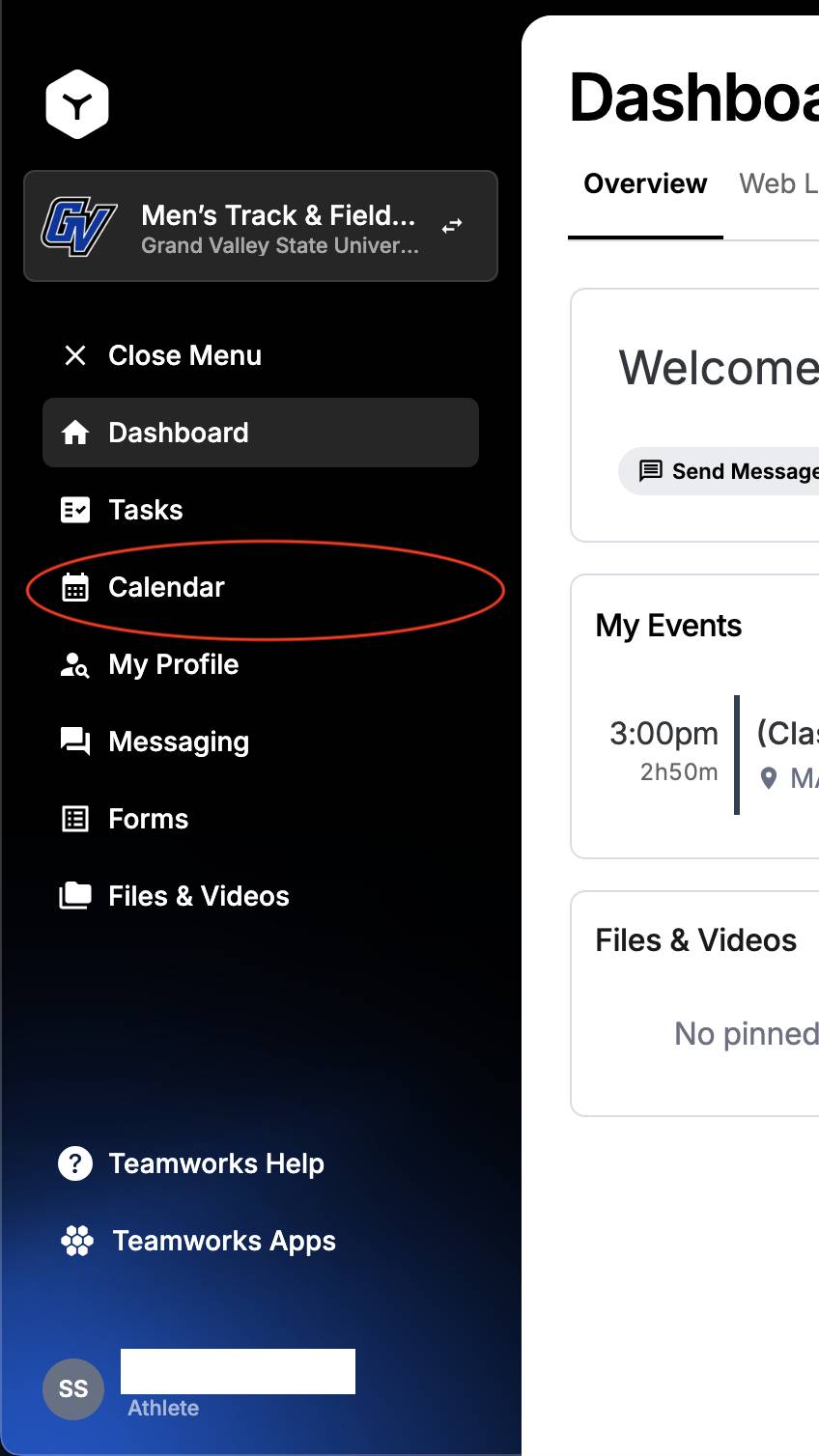
To sync your GVSU calendar with Teamworks, first log into your Teamworks Hub account on a computer (this cannot be done on the mobile app). Navigate to the left side of the screen and click the calendar button.
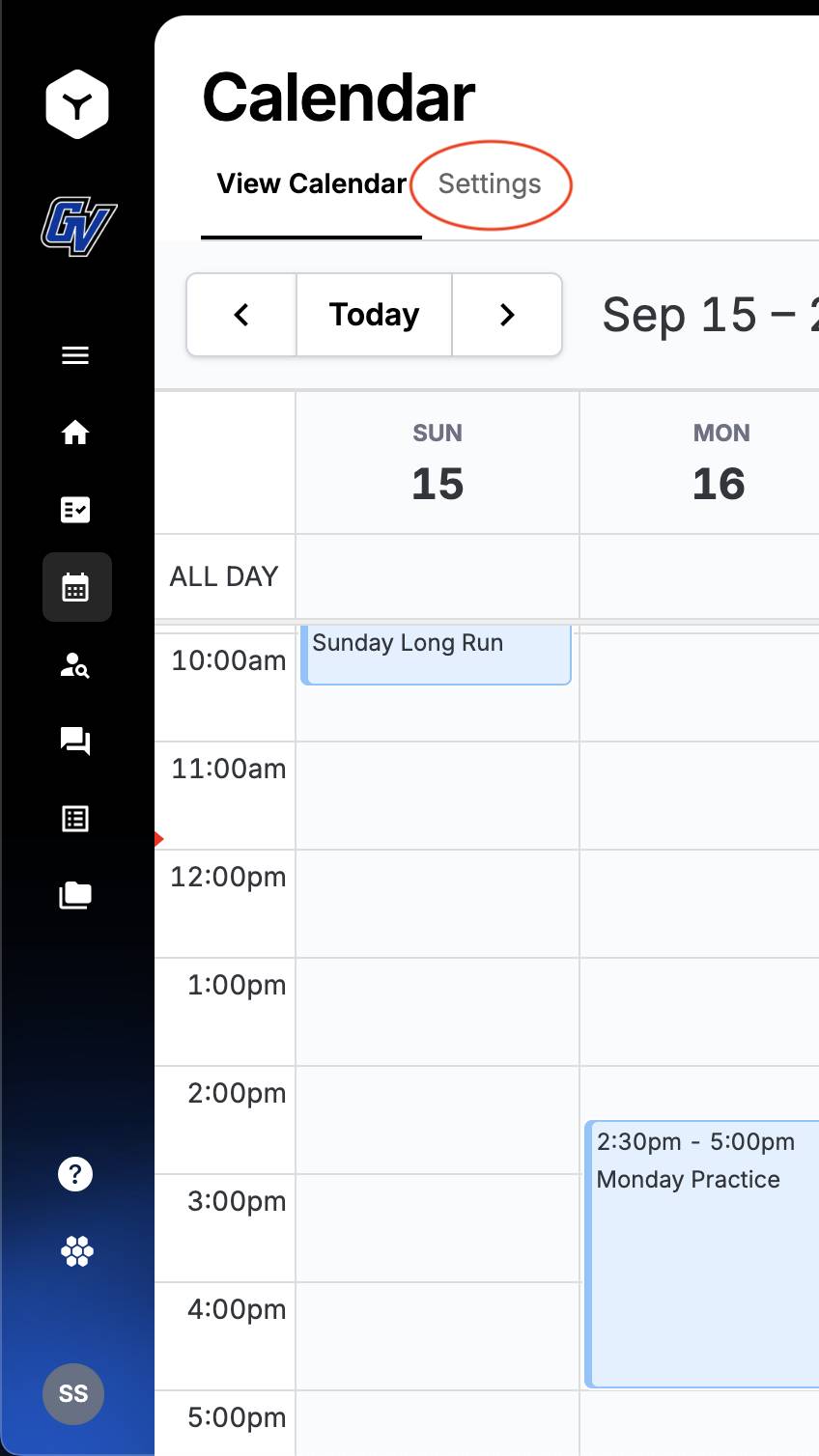
Once in your Teamworks calendar, click the Settings tab at the top of the screen.
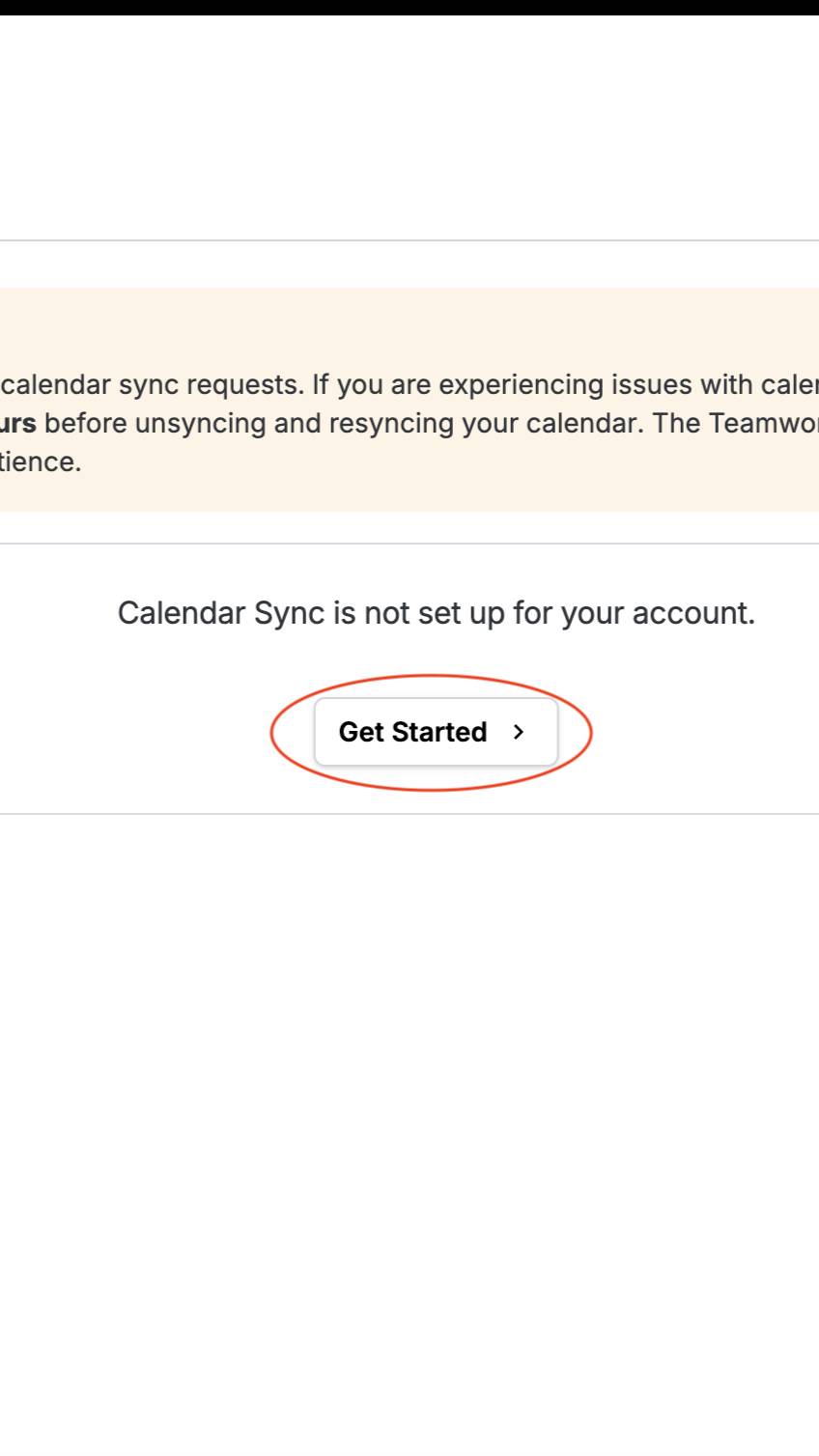
In the middle of the screen, click Get Started.
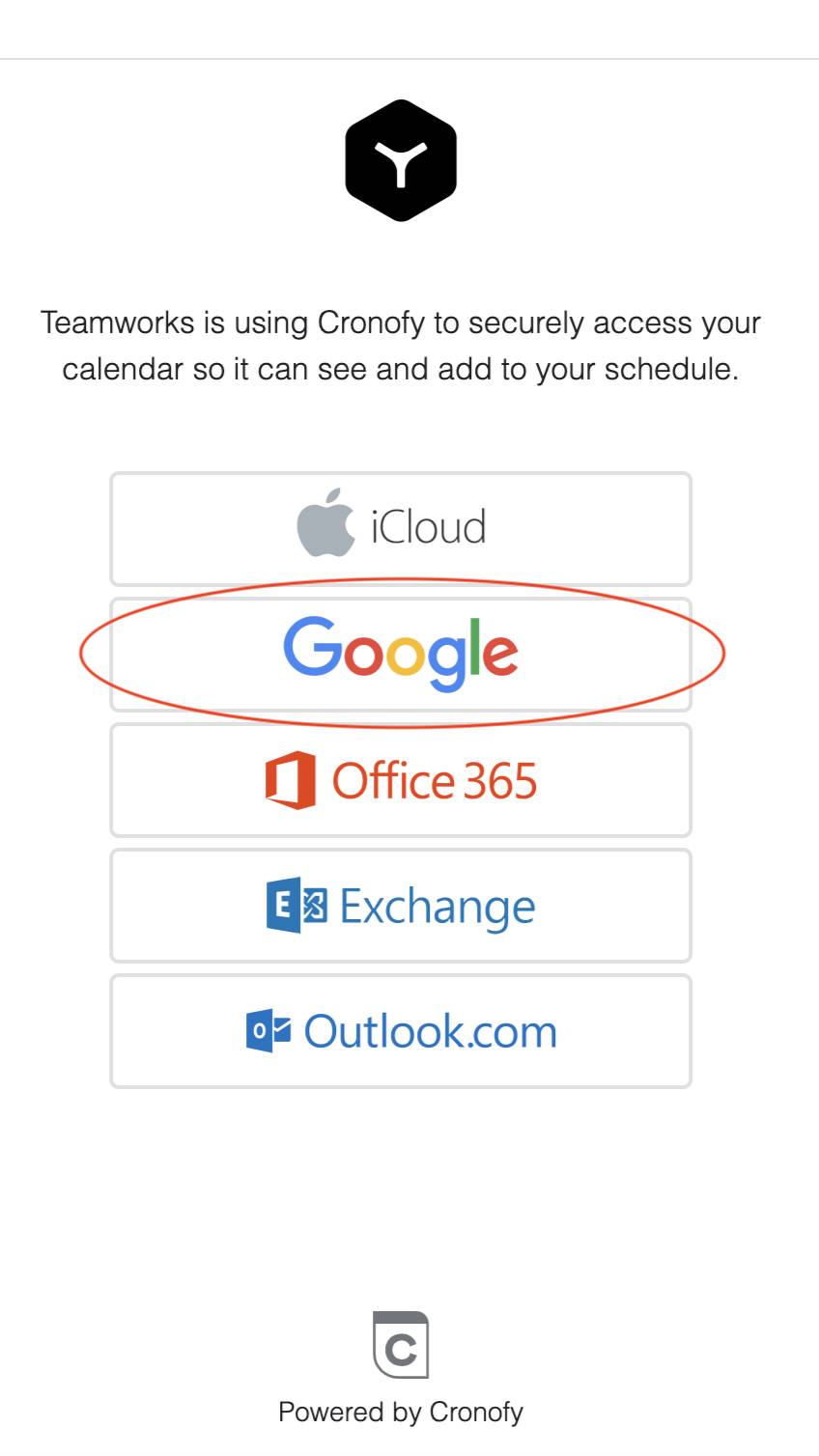
Click the Google logo in the center, log in to your GVSU account, and continue the set-up process.
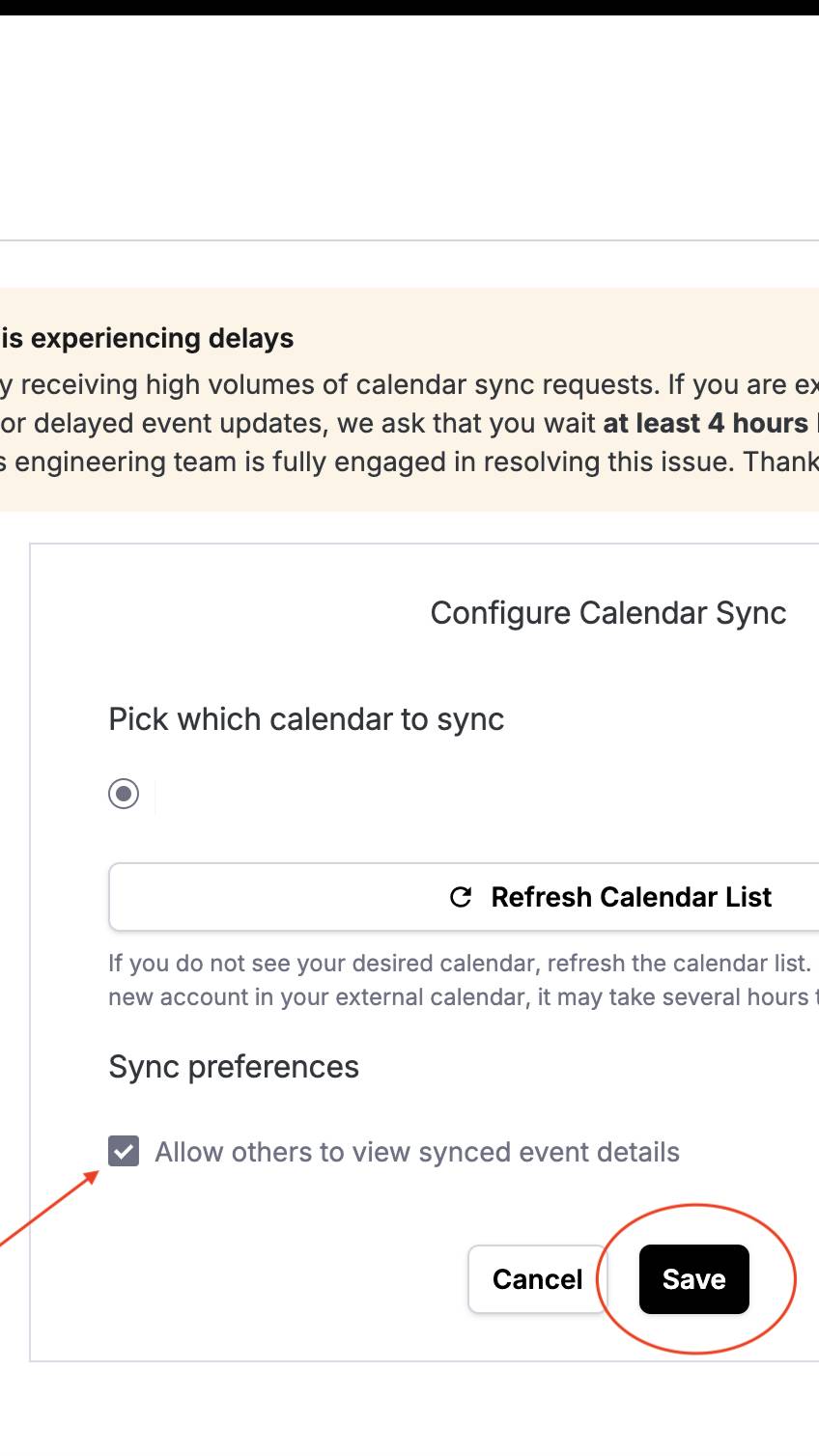
Once you link your account, a final Configure Calendar Sync box will appear. Under Sync preferences, you can select the box to allow your coaches to see any academic advising meetings that you have set up. Once you are done, click the Save button at the bottom of the screen.
Launching a Workflow
[1725370943].jpg)
To launch a workflow, first log into your Teamworks Hub account on a computer (this cannot be done on the mobile app). Navigate to the bottom left corner and click Teamworks Apps, then select Compliance + Recruiting.
[1725370943].jpg)
Once you are at the Compliance + Recruiting dashboard, click on the workflows icon on the left sidebar and then click Workflow Launchpad.
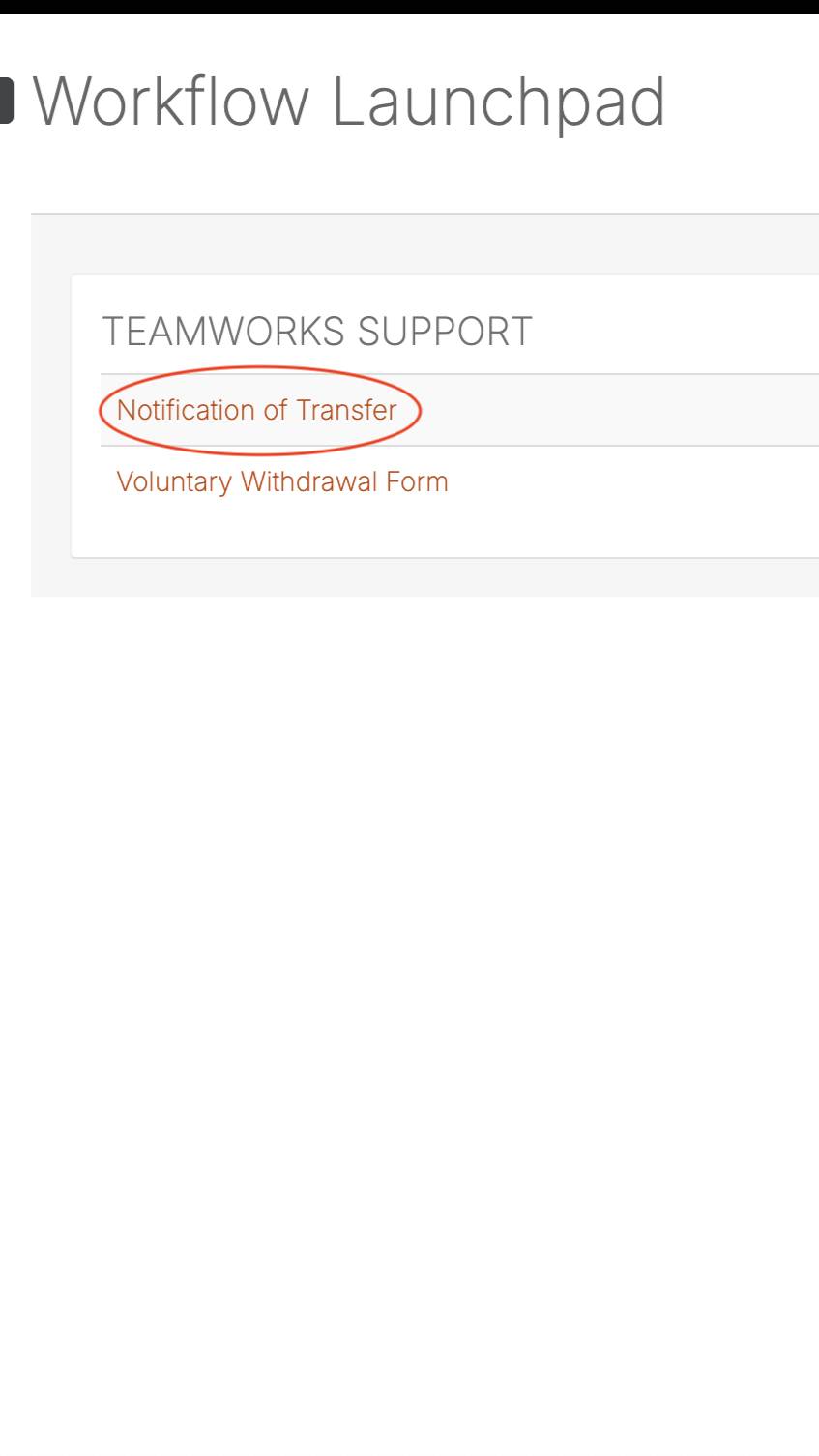
Here, all of your available workflows will be listed. Select the workflow you wish to complete. For this example, we will be using the Notification of Transfer workflow.
[1725371784].jpg)
Once the workflow is opened, enter your correct sport and academic year. Then, click Launch Workflow on the bottom right of the page.
[1725371784].jpg)
Now that the workflow is launched, you can fill out all the required information. Make sure to fully read all the instructions. If needed, you can save the workflow and come back to it at a later time. Once completed, click the submit button in the bottom right corner.