

Blackboard Known Issues and FAQs
Chrome Issue - Multiple Login Prompts while displaying PDFs
September 11, 2020
Resolving Issue as a Faculty Member
To resolve this issue, as a faculty member, if you are on a Mac and open the PDF in Preview, click File > Export As > give the file a new name, and save. Then re-upload this file into Blackboard.
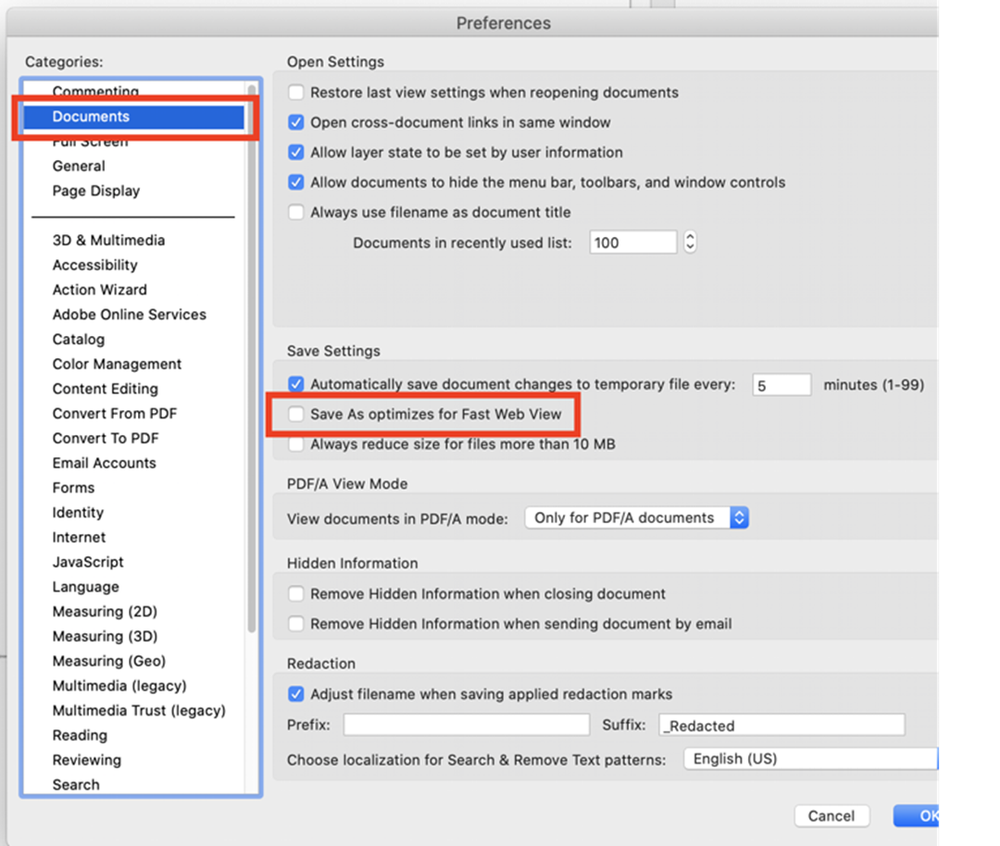
Or using Adobe Acrobat (full or Reader version), open the file, and then select Preferences (or Edit Preferences) > Documents > un-check Save as optimized Fast Web View, and click Okay. Then Save As your file as a new name to get rid of the Fast Web View setting on the PDF. And upload back to Blackboard.
Student Solution
Until the files are fixed by a faculty member, the student can download the file to their computer and open it in a PDF viewer that’s not Chrome. Another option is to open the PDF in Firefox.
To set Chrome to download the PDF instead of using in browser view::
- Go into Chrome Control Sidebar (3 dots in top right header)
- Click on Settings
- Scroll down to Privacy And Security - Click on "Site Settings"
- Scroll to PDF Documents
- Enable "Download PDF files instead of automatically opening them in Chrome"