

Film and Video Production
Hands-On Experiences
A strong hands-on emphasis characterizes the film and video production major at Grand Valley State University.
Courses of study include animation, documentary, fiction, film studies, new media, nonfiction, scriptwriting, and sound design.
The curriculum integrates production experience with insights offered by media history, theory, and criticism.
The film and video production program is accredited by the National Association of Schools of Art and Design (NASAD).

Degree Options
Bachelor of Arts (BA) / Bachelor of Sciences (BS) in Film & Video Production
Students may pursue a BA or BS with this major. The BA degree requires a cognate area consisting of a third-level proficiency in a foreign language, while the BS requires three courses in Computer Information Systems. Both options prepare the student for a successful career in the media industry, with a variety of employment options.
Film and Video Production Major Information
Learning Environment
Real Sets. Real Experience.

- Build your personal expertise and creative voice through a wide range of hands-on production and film studies courses.
-
Learn from faculty who are active industry practitioners with diverse professional experience.
-
Gain real-world experience through internships and local production projects beyond the classroom.
-
Showcase your work through public screenings and contributions to a peer-reviewed academic journal.
-
Get involved in student organizations, including a student-run television station, radio station, newspaper, film screening clubs, and more.
-
Produce work for real clients both in and outside the classroom, simulating professional production environments.
-
Prepare for graduate study in filmmaking, cinema studies, and related fields.
Faculty

Ellery Bryan
Assistant Professor
[1691611045].jpg)
Ryan Copping
Visiting Professor

Navid Davishzadeh
Assistant Professor

Julie Goldstein
Associate Professor

ishkwaazhe Shane McSauby
Visiting Professor

Joel Potrykus
Associate Professor

John Schmit
Professor
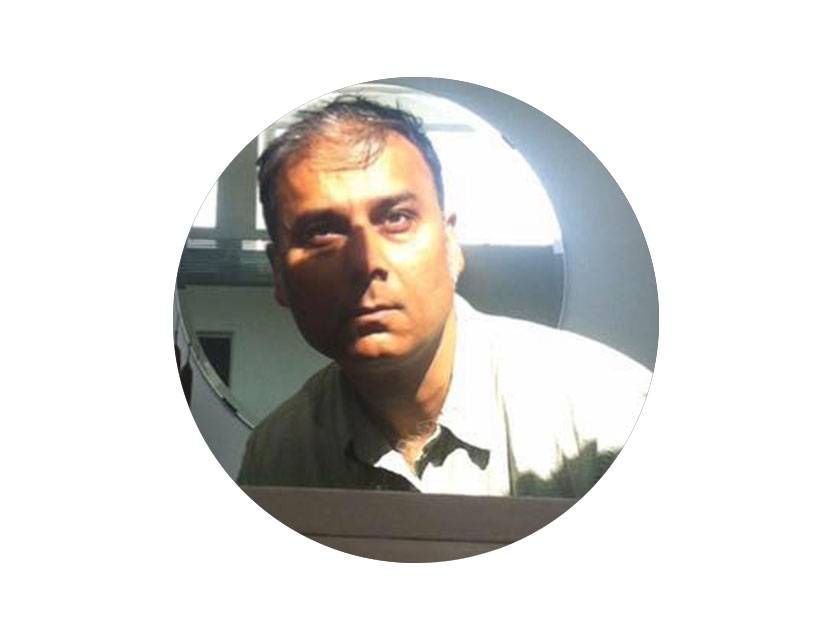
Anal Shah
Associate Professor

Suzanne Zack
Senior Affiliate Professor
Internship Coordinator
100-level courses
FVP 123 - Survey of Media Production Modes
Introductory course in the critical study of the various modes of
film/video/animation/new media production. Examines distinctive formal
elements of each mode as well as the economic and cultural context of
production and reception. A prerequisite course for film and video
production. Offered fall and winter semesters. Prerequisite:
Restricted to film and video, communication studies, health
communications, multimedia journalism, photography, advertising/public
relations, and theatre majors.
Credits: 3
FVP 125 - Media Production I
Fundamentals of video production, including the techniques and the
aesthetics of shooting, lighting, and editing. Emphasizes hands-on
production experience, using digital video. A preadmission course for
film and video production. Offered fall and winter semesters.
Prerequisite: Restricted to film and video, communication studies,
health communications, multimedia journalism, photography,
advertising/public relations, and theatre majors.
Credits: 3
200-level courses
FVP 226 - Media Production II
This is the second course in the video production sequence, emphasizing the techniques and aesthetics of shooting and editing. Additional emphasis placed on concept development and production management. Offered fall and winter semesters. Prerequisite: Admission to major.
Recommended corequisite: FVP 227.
Credits: 3
FVP 227 - Post-Production Techniques
ntermediate-level post-production techniques are explored and applied including editing, motion graphics, visual effects, and color correction. Tutorials and workshops are designed to advance technical skills in support of course-related projects and upper-level production courses within the film and video production program. Offered fall and winter semesters. Prerequisite: Admission to the major.
Recommended co-requisite: FVP 226
Credits: 3
FVP 261 - Scriptwriting I
Writing for film, video, radio, and mixed media. Writing exercises include dramatic, informational, documentary, public service announcements, and commercial formats. Offered fall and winter semesters. Prerequisite: Restricted to film/video majors.
Credits: 3
FVP 282 - Audio Production I
Introduction to the general principles of sound, to the hardware and software of radio, and to other major media uses of sound. This is a production course. Offered every semester. Prerequisite: Restricted to film/video, communication studies, and multimedia journalism majors.
Credits: 3
300-level courses
FVP 321 - Fiction Filmmaking I
This is an intermediate-level production course using class members
as the production unit focusing on fiction filmmaking, including story
development, production/post techniques, directing and interpretation
of drama from script to screen. Offered fall and winter semesters.
Prerequisites: FVP 226 and FVP 227.
Credits: 3
FVP 322 - Documentary Production I
Working in production teams, students produce a documentary video
about a substantial topic of their choice. Includes viewings and
readings. Offered every year. Prerequisites: FVP 226, FVP 227.
Credits: 3
FVP 323 - Media Technologies
Basic electronics theory, audio and video recording, synthesizing on
audio or video signal, and signal processing. Offered fall semester.
Prerequisites: FVP 226, FVP 227.
Credits: 3
FVP 324 - 3D Computer Animation
Introduction to 3D modeling and animation using computers. Students
will demonstrate proficiency at basic modeling skills, surfacing,
lighting, and animation. There will be consideration of how color,
shape, lighting, and texture influence meaning. Work in critical
analysis provides a context for the animation process. Offered winter
semester. Prerequisites: FVP 226, FVP 227.
Credits: 3
FVP 325 - Animation I
An introductory course in animation filmmaking. Students will work in
small groups on animation and movement exercises and will individually
produce a short final film. Readings will be assigned, films will be
viewed and discussed. Offered fall semester. Prerequisites: FVP 226,
FVP 227.
Credits: 3
FVP 326 - New Media I
An introduction to theory and practice of new media production as a
means for storytelling and creative expression. Explores the practice
of user-testing and participation, image manipulation and multimedia
production with a focus on emerging and traditional forms of media
production. Offered fall semester.Prerequisites: FVP 226, FVP 227.
Credits: 3
FVP 327 - Film and Video Art
A practical examination of the elemental codes and structures of film
and video. Exercises in lighting, sequencing, sound, color, and
composition. Viewings and readings. Offered winter semester.
Prerequisites: FVP 226, FVP 227.
Credits: 3
FVP 328 - Intermediate Film Practicum
Explores the craft of narrative drama in motion pictures. Students
with some background in film, video, and/or audio gain an
understanding of the professional model of media production by
assisting in the planning and shooting of a dramatic film. Offered
spring/summer semester. Prerequisite: Permission of instructor.
Credits: 3 or 6
FVP 330 - Digital Post Production
Explores conceptual issues in editing images and sound in a digital
production environment. Offered fall and winter semesters.
Prerequisites: FVP 226, FVP 227.
Credits: 3
FVP 348 - Film Theories
This course will introduce various perspectives on the study of film
in order to explore and explain how films generate meaning and
pleasure. Students will gain an historical understanding of film, and
learn to write in the language of scholarly film criticism. Offered
fall and winter semesters. Prerequisite: FVP 123.
Credits: 3
FVP 362 - Scriptwriting II
A seminar in which students work on individual scripting projects of
substantial length, using class and instructor for critical analysis.
Offered fall semester. Prerequisites: FVP 226, FVP 227, FVP 261
Credits: 3
FVP 368 - Lighting for Film and Video Production
The process of studio and location lighting for film and video;
principles, instruments, measurement tools, filters/diffusers,
single/multiple setups. Offered fall and winter semester.
Prerequisites: FVP 226, FVP 227.
Credits: 3
FVP 370 - American Cinema
A historical survey of American cinema which examines the cultural
and aesthetic significance of film as well as the changing economic
and technological contexts of the U.S. film industry. Offered fall
semester. Prerequisite: FVP 123.
Credits: 3
FVP 371 - History of Animation
A global historical survey of animated film and video production that
examines styles of animation, how animation techniques evolved as
technology changed and the economic determinants of the production and
reception of animated films. Offered fall semester of even-numbered
years. Prerequisite: FVP 123.
Credits: 3
FVP 372 - History of Documentary Film
An historical survey of nonfiction film and video that examines the
theoretical context for documentary production, the varied functions
and styles of documentary work, how documentary technique evolved as
technology changed and the economic determinants of documentary
production. Offered fall semester of odd-numbered years. Prerequisite:
FVP 123.
Credits: 3
FVP 373 - Issues of Representation
This course investigates the representation of gender, race and
ethnicity, sexual orientation and identity, and class in contemporary
cinema. It focuses on the role cinematic representation plays in the
construction of identity and stereotypes, and ways in which film can
also challenge conventional representations. Offered winter semester
of odd-numbered years. Prerequisite: FVP 123.
Credits: 3
FVP 374 - Experimental Film and Video
This course examines the international history of experimental film
and video and contemporary practice within the mode. The course
emphasizes the theoretical and critical analysis of significant work
in its historical context. Offered winter semester of even-numbered
years. Prerequisite: FVP 123.
Credits: 3
FVP 375 - World Cinema
Explores the economic, historical, and cultural context for film
production and exhibition in several countries to understand the
relationship between cinema and national culture. Examines the
influence and significance of films that have constituted alternatives
to the Hollywood entertainment model. Close textual readings of
foreign films. Offered winter semester. Prerequisite: FVP 123.
Credits: 3
FVP 376 - Latin American Cinema
A survey of cinema in Latin America. The course will analyze
representative films as works of art and examine them as cultural,
historical, political, and economic products that characterize and
reveal diverse perspectives from significant film producing countries
in Latin America. Course is cross-listed with LAS 376. Offered fall semester.
Credits: 3
FVP 380 - Special Topics In Film and Video
A study of special topics not regularly covered in the curriculum.
Expectations of the student in this course approximate those in other
300-level courses. May be repeated for credit when content varies.
Prerequisite: Admission to major.
Credits: 3
FVP 382 - Audio Production II
A two-part course: First, core topics that are the foundation of all
audio production. Second, topics of special interest, such as radio,
TV, film, music recording, and digital audio. Throughout the course,
professionalism will be stressed both in the final products and in the
individual performance. Offered winter and spring/summer
semesters. Prerequisites: FVP 282 and restricted to film/video,
communication studies, and multimedia journalism majors.
Credits: 3
400-level courses
FVP 421 - Fiction Filmmaking II
In this advanced workshop, students will work in large production
crews to produce short, dramatic fiction motion pictures from their
original scripts. Offered fall and winter semesters. Prerequisites:
Admission to the major, FVP 321
Credits: 3
FVP 422 - Documentary Production II
Working in production teams, students produce a documentary video
about a socially significant topic of their choosing. Readings and
assignments will develop an understanding of the methods for producing
independent documentary and the accompanying issues commonly
encountered. Offered winter semester. Prerequisites: Admission to the
major and FVP 322.
Credits: 3
FVP 425 - Animation II
Continued work in animation production for character and graphic
animation. Introduction to 3-D computer animation and current
technologies for special effects in motion pictures. Students will
design, storyboard, and complete an animation project. Offered winter
semester. Prerequisites: Admission to major and FVP 325.
Credits: 3
FVP 426 - New Media II
A continuation of theory and practice of new media production as a
means for storytelling and creative expression. This course further
expands the focus on conceptual and technical skills in emerging and
traditional forms of media production. Offered winter semester.
Prerequisites: FVP 326 or permission of the instructor.
Credits: 3
FVP 428 - Advanced Film Practicum (Summer Film Project)
Explores the craft of narrative drama in motion pictures. At an
advanced level, film students gain theoretical and practical
experience in the production of a dramatic film. Students fill skilled
positions on the film’s crew. Offered spring/summer
semester.Prerequisites: Admission to the major, FVP 321
Credits: 3 or 6
FVP 429 - Post-Production Practicum
The process of audio, film, and video postproduction, emphasizing the
draft/revision process. Editing will proceed in a nonlinear digital
environment. Offered fall semester. Prerequisites: FVP 261 and either
FVP 330 or FVP 282.
Credits: 3
FVP 470 - Producing For Clients
Students produce media solutions to meet the goals of nonprofit
clients. Projects are field-tested to ensure professional-level media
production standards. Offered fall semester. Prerequisites: Admission
to major and one intermediate video production course (FVP 320 or higher).
Credits: 3
FVP 482 - Sound Design for Film and Video
In-depth study of recording and manipulating sound to enhance visual communications. Students sharpen their skills in adapting standard recording tools to the requirements of video/film. The class encourages critical thinking about how sounds conveys meaning and transforms the meaning of the image. Offered winter semester. Prerequisites: Admission to major and FVP 282.
Credits: 3
FVP 490 - Internship
A supervised work experience in an area of a student’s potential
career interest. Initiated by the student, who plans the work
experience with the advisor, the faculty sponsor chosen to supervise
the internship, and the supervisor at the worksite. Credit is awarded
only when the student, the Film and Video Production Internship
Coordinator and the work supervisor have completed evaluations of the
internship. Offered every semester. Prerequisite: Admission to the major.
Credits: 1 to 6
FVP 498 - Senior Thesis/Project
The senior thesis/project demonstrates both depth and sophistication
in the major. Offered winter semester. Prerequisite: Admission to the
major. Permit required (proposal process)
Credits: 1 to 6
"Pets" Trailer (2024 Summer Film Project)
Offered in the Summer/Spring Semesters for FVP 328, FVP 428
Professional Networking
Grand Valley Television (GVTV)
GVTV is GVSU's only student-run television station. They broadcast news, sports, fiction shows ranging from sketch comedy to drama.
Women in Cinema Club
This organization equips students with resources and knowledge for film production and critique.
Scriptwriting Club
This organization is devoted to writing and vision.
Animator's Guild
This organization promotes the appreciation of animation.
Cinesthesia
Cinesthesia: The Grand Valley Journal of Cinema was established to provide undergraduates the opportunity to showcase their academic work, both written and video in format, in the field of cinema studies.
Other Links
Schedule a VMA Tour
Interested in visiting VMA? Schedule your student lead tour today!
Tours are available during open VMA Office hours:
Monday -Friday 8:00 a.m.-4:30 p.m.
(Closed on Public Holidays)
VMA Main Office: (616) 331-3486
[email protected]
Request Information/Visit
For questions about the Film and Video Production area, please contact:
Professor Julie Goldstein
Film and Video Production Program Coordinator
Office: 221 Lake Superior Hall
Phone:(616) 331-3465
E-mail: [email protected]
OTHER AREAS
Art Education — Art History — Ceramics — Film & Video Production — Graphic Design — Illustration — Jewelry and Metalsmithing — Painting — Photography — Printmaking — Sculpture — Visual Studies